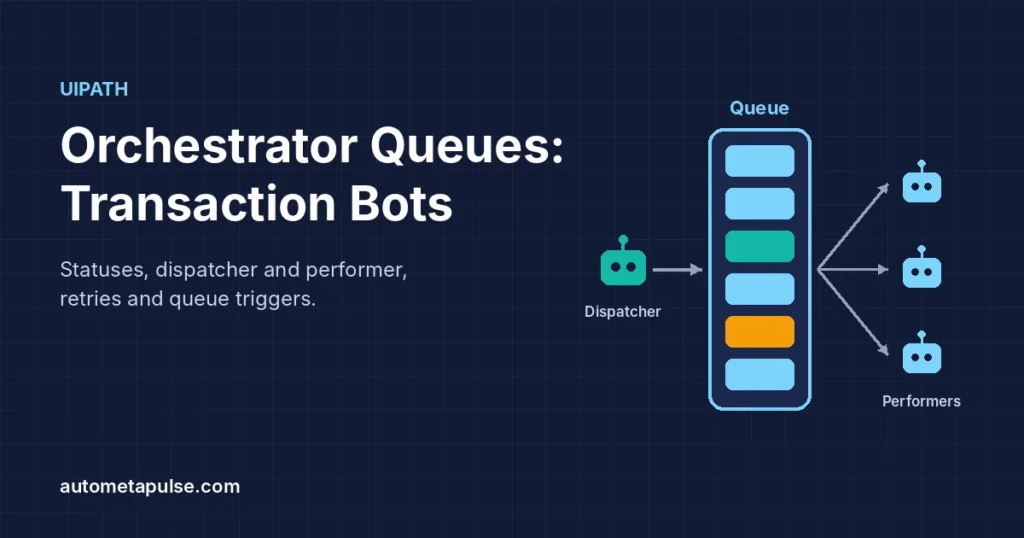
UiPath Orchestrator queues let you split a big batch of work into small, independent transactions that one or more robots process, track and retry. You add each unit of work (an invoice, an order, a customer request) as a queue item, a robot picks items one at a time with Get Transaction Item, and it reports the result with Set Transaction Status. Designed well, a queue-based bot can be restarted, scaled and audited without losing work.
In this guide
- What Orchestrator queues are
- Queue item statuses
- The dispatcher and performer pattern
- Configuring a queue
- Business vs application exceptions
- Queue triggers and scaling
- Design checklist
- Frequently asked questions
What Orchestrator queues are
A queue is a container in Orchestrator that holds work items. Each item is one transaction: a piece of work that can succeed or fail on its own without affecting the others. Instead of one long job that loops through a spreadsheet and stops halfway when row 214 has a problem, you get hundreds of small, traceable units of work.
Every queue item carries:
- Specific Data: the key/value pairs the robot needs (invoice number, amount, customer ID). UiPath limits Specific Data to 256,000 characters or 512,000 bytes per item, so store large files elsewhere and keep a link in the item.
- Reference: an optional text value you choose, used to search for an item and link it to another system.
- Priority, Deadline and Postpone: optional values that influence when an item is processed.
- Output and Analytics data that the robot can write back when it finishes.
Orchestrator works through items with a deadline first (ordered by priority, then deadline), then items without a deadline (ordered by priority, then first-in, first-out). The About Queues and Transactions page covers the details.
If you are new to UiPath, our UiPath hub and the REFramework guide are good starting points, because REFramework is built around this same transaction model.
Queue item statuses
Every item moves through a small set of statuses. Knowing them is what lets you design reporting, alerts and retries that make sense.
| Status | What it means | Set by |
|---|---|---|
| New | Added and waiting (also used for postponed items and for retries) | Add Queue Item, Bulk Add Queue Items, auto retry |
| In Progress | A robot has picked it up | Get Transaction Item, Add Transaction Item |
| Successful | Processed successfully | Set Transaction Status |
| Failed | Did not meet a business or application requirement | Set Transaction Status |
| Retried | Failed with an application exception and was retried as a new item | Orchestrator (auto retry) |
| Abandoned | Stayed In Progress for about 24 hours without being completed | Orchestrator |
| Deleted | Manually marked as deleted and can no longer be processed | A user on the Transactions page |
Two details catch people out. First, there is no separate “Postponed” status; a postponed item stays New until its postpone date. Second, Abandoned usually means a robot crashed or a job was stopped after Get Transaction Item but before Set Transaction Status. If you see abandoned items, look for a code path that skips Set Transaction Status. The full list is on the Queue Item Statuses page.
The dispatcher and performer pattern
Most queue-based solutions are split into two processes:
- Dispatcher: reads the source (an email inbox, a report, a shared folder, a database query) and adds one queue item per unit of work. It does no business processing.
- Performer: gets one item, processes it in the target systems, sets the status, and repeats until the queue is empty.
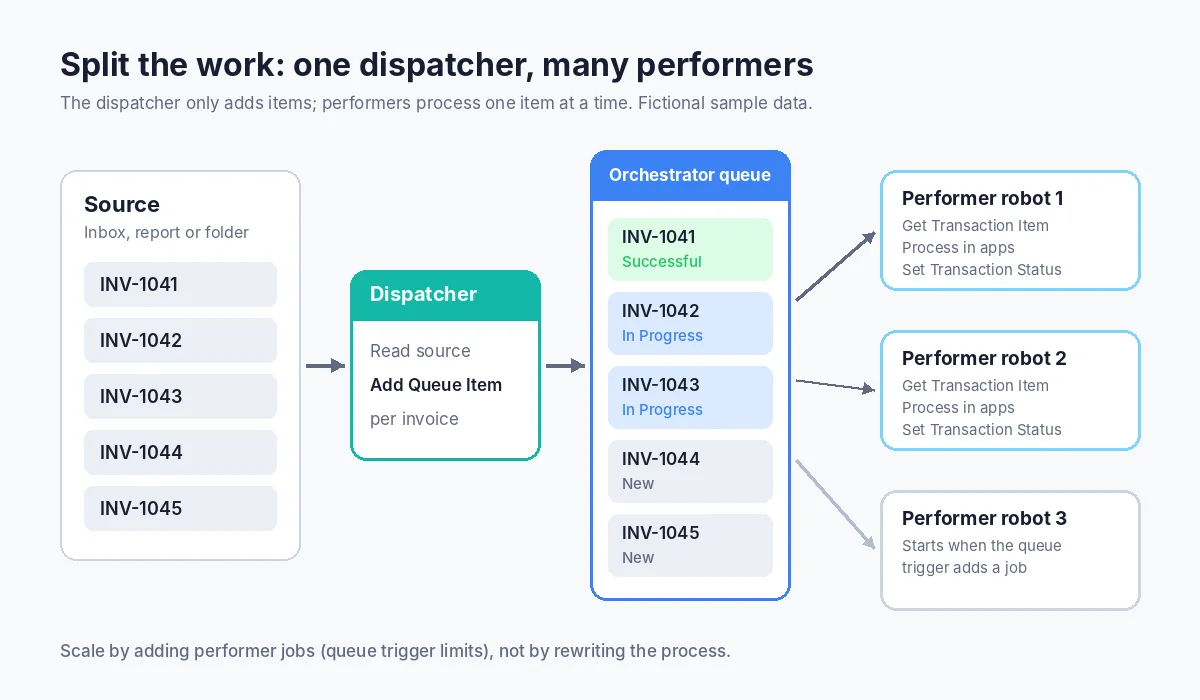
Why split them? The two halves fail and scale differently. The dispatcher usually runs once on a schedule and finishes in seconds or minutes. The performer does the slow work in business applications, so that is where you add more robots when volume grows. If the performer stops halfway, nothing is lost: the remaining items are still in the queue with status New.
Studio activities you will use
All of these sit under Orchestrator > Queues in the UiPath.System.Activities package, as listed in Studio Activities Used With Queues:
| Activity | Use it for |
|---|---|
| Add Queue Item | Dispatcher: add one item with status New |
| Bulk Add Queue Items | Dispatcher: add a DataTable of items in one call |
| Get Transaction Item | Performer: fetch the next item and set it to In Progress |
| Set Transaction Status | Performer: mark the item Successful or Failed |
| Set Transaction Progress | Performer: record a custom progress note while the item is In Progress |
| Postpone Transaction Item | Defer an item so it is not started before a set time |
| Add Transaction Item | Add an item and start it immediately as In Progress (useful for attended or single-step flows) |
| Get Queue Items | Read up to 100 items for reporting or checks |
A simple performer loop looks like this:
- Get Transaction Item from the queue.
- If nothing was returned, end the job.
- Read the values from Specific Data and process them in a Try Catch.
- On success, Set Transaction Status to Successful (optionally with Output data).
- On a business rule failure, Set Transaction Status to Failed with error type Business and a clear reason.
- On a technical failure, Set Transaction Status to Failed with error type Application, recover the applications, then go back to step 1.
REFramework already implements this loop with its Get Transaction Data, Process Transaction and Set Transaction Status states, which is why it is the usual starting template for performers.
Configuring a queue
When you create a queue in Orchestrator (Queues > Add Queue in the folder where your robots run), a few settings shape how it behaves. The Managing Queues in Orchestrator page lists them all; these are the ones worth deciding on purpose.
Unique reference
Select Enforce unique references if every item must have a different Reference. This is a simple way to stop the dispatcher adding the same invoice twice when it runs again after a failure. Retried and deleted items do not count in the uniqueness check, and a duplicate reference makes the add fail, so the dispatcher should catch that error and skip the item. Decide this when you create the queue, because the edit screen only covers the name, description and retry settings.
Auto retry
Auto retry tells Orchestrator to create a new copy of an item that failed with an application exception, and you can also switch on retries for abandoned items. The maximum number of retries is a value from 1 to 50. Changes apply to future failures only; existing failed items are not retried, and manual retries do not count towards the limit.
A sensible starting point (illustrative, tune it to your process) is 1 to 3 retries. More than that usually hides a real problem, such as an application that is down for hours.
SLA and Risk SLA
If you link the queue to the process that handles it and switch on SLA predictions, you can set an SLA (up to 90 days) and a Risk SLA, which must be smaller than the SLA. Items without their own deadline get one based on the SLA, and Orchestrator warns you when items are at risk of missing it. This is useful when the business cares about “all invoices processed within one working day” rather than about individual jobs.
Retention
New queues use a default retention policy: completed items are deleted after 30 days and cannot be restored. You can set a custom policy (up to 180 days for completed items) and choose Archive to a storage bucket instead of Delete if you need history for audits. See Queue Item Retention Policy.
Business vs application exceptions
The error type you pass to Set Transaction Status is the single most important design decision in a queue-based bot.
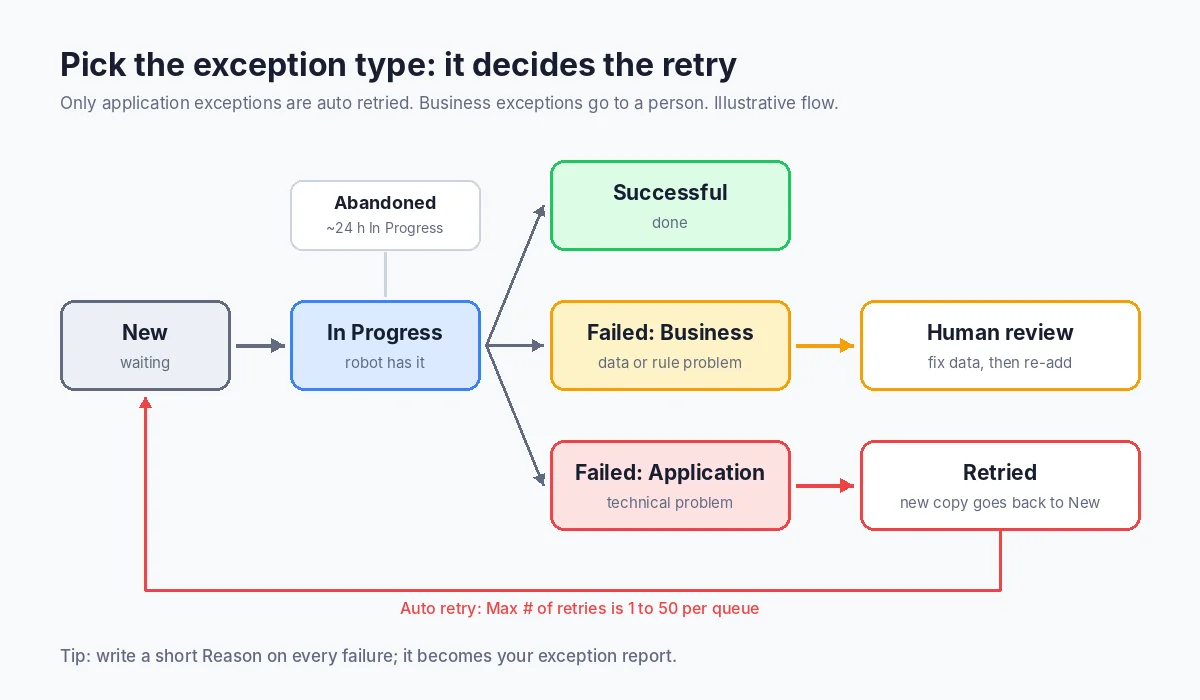
- Business exception: the data or the business rules make the item impossible to complete. Examples: the invoice has no purchase order number, the customer account is closed, the amount is above the approval limit. Retrying will not help, so these items are not auto retried. They need a person or a different process.
- Application exception: something technical went wrong. Examples: a page did not load, a selector was not found, a session expired. A retry after restarting the application often works, so these are the items auto retry is designed for.
Get this wrong and you get one of two problems. If you raise business problems as application exceptions, the bot retries items that can never succeed and wastes robot time. If you raise technical problems as business exceptions, items that would have worked on a retry land in someone’s manual queue.
Write a short, consistent Reason for every failure, such as “Missing PO number” or “Vendor not found in ERP”. Reasons appear on the Transactions page, so they become your exception report without extra work.
Queue triggers and scaling
You can run the performer on a schedule, but a queue trigger is often a better fit. It starts the process when the trigger is created or when new items are added. You set:
- Minimum number of items to trigger the first job: wait until there is enough work to be worth starting a robot.
- Maximum number of pending and running jobs allowed simultaneously: the upper limit of robots working the queue at the same time.
- Another job is triggered for each N new items: add a robot for every N extra items, so capacity follows volume.
By default, Orchestrator also checks for unprocessed items every 30 minutes, and admins can change that frequency in the tenant settings. Only one queue trigger can exist per queue. The Queue Triggers page has the full list of options.
Because each item is processed by exactly one robot at a time, several performers can safely work the same queue in parallel.
Design checklist
Use this list when you design or review a queue-based automation:
- One item = one unit of business work. If one failure should not block the others, they belong in separate items.
- Keep Specific Data small and complete. Put the IDs and values the performer needs; link to files instead of embedding them.
- Use a meaningful Reference, such as the invoice or order number, and enforce uniqueness when duplicates would cause harm.
- Always call Set Transaction Status, including in error paths, so items do not end up Abandoned.
- Choose the error type deliberately: business for data and rule problems, application for technical failures.
- Limit auto retries to a small number and alert on repeated application failures.
- Write clear failure reasons that a business user can act on.
- Plan retention before go-live if you need transaction history for audits.
- Test with bad data, not just good data: missing fields, duplicates, and items that hit each business rule.
For a deeper look at handling failures inside the performer, see our REFramework guide.
Frequently asked questions
What is a queue in UiPath Orchestrator?
A queue is a container in Orchestrator that holds work items (transactions). Robots take items one by one, process them and record whether each one succeeded or failed.
What is the difference between Add Queue Item and Add Transaction Item?
Add Queue Item adds an item with status New so a performer can pick it up later. Add Transaction Item adds an item and immediately starts it with status In Progress, so the same workflow processes it.
Why are my queue items Abandoned?
An item becomes Abandoned when it stays In Progress for about 24 hours without being completed. This usually means the job stopped, or the workflow skipped Set Transaction Status on some path.
Are business exceptions retried automatically?
No. Auto retry is designed for items that fail with an application exception. Business exceptions mean the item cannot succeed as it is, so they need a person or a separate process.
How many times can Orchestrator retry a queue item?
The maximum number of retries is set per queue, with an allowed range of 1 to 50. Most teams keep it low so repeated technical failures are noticed quickly.
Can several robots work on the same queue?
Yes. Each item is given to one robot at a time, so multiple performer jobs can process the same queue in parallel. A queue trigger can start extra jobs as more items arrive.
How long does Orchestrator keep queue items?
By default, completed items in new queues are deleted after 30 days. You can set a custom retention policy and archive items to a storage bucket instead.
Conclusion: design the transaction first
Queues work best when you design the transaction before you build the bot: decide what one item is, what data it carries, how you prevent duplicates and how each failure is classified. With a clean dispatcher, a performer that always sets a status, and sensible retry and trigger settings, your UiPath automation can restart safely and grow with volume.
If you want a second opinion on a queue design, or help moving a long looping bot to a dispatcher and performer model, our team can review it with you. See our automation services.
Discuss your automation workflow →