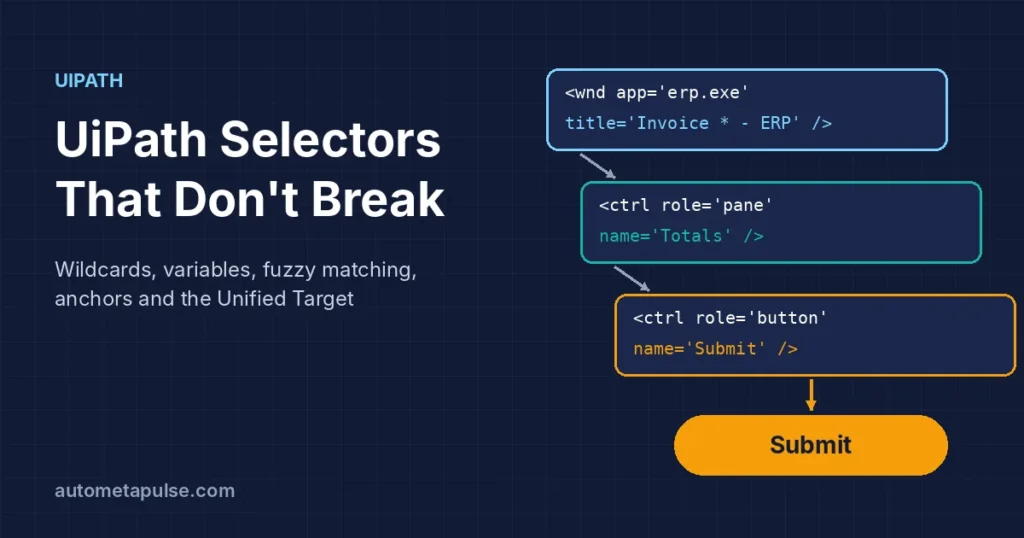
UiPath selectors are the addresses a robot uses to find a button, field or window on screen, and most “the bot worked yesterday” failures come back to a selector that no longer matches. Reliable selectors use attributes that stay constant, replace changing values with wildcards or variables, avoid position-based attributes such as idx, and, in modern activities, are backed up by anchors and fallback targeting methods.
In this guide
- What a UiPath selector is
- Full vs partial selectors
- Why selectors break
- Wildcards, variables, fuzzy and regex matching
- Modern targeting: Unified Target and anchors
- Tools: UI Explorer, Object Repository and Healing Agent
- Selector checklist
- Frequently asked questions
Product details below were checked on docs.uipath.com on 28 October 2026. New to UiPath? Browse our UiPath guides first.
What a UiPath selector is
UiPath’s documentation on selectors describes a selector as an XML fragment that stores the attributes of a UI element and its parents. Each tag is a node. The first node is usually the top-level window, and the last node is the element you want the robot to click or type into.
A simple desktop example looks like this:
<wnd app='notepad.exe' cls='Notepad' title='Untitled - Notepad' />
<wnd aaname='Text Editor' cls='Edit' />
The robot reads the selector from top to bottom: find the Notepad window, then find the edit area inside it. The key line in UiPath’s guidance is this: “It is important to pick attributes with a constant value.” Everything else in this guide is about applying that rule.
Full vs partial selectors
UiPath separates full and partial selectors:
| Full selector | Partial selector | |
|---|---|---|
| Contains the top-level window | Yes | No |
| Where you see it | Window selector of the container, Selector Editor, UI Explorer | Activities inside a container |
| Typical container | Not needed | Use Application/Browser (modern) |
| Best for | Opening or attaching to an app | Many actions on the same screen |
In modern activities, the Use Application/Browser container holds the full selector of the window, and the activities inside it hold partial selectors. That has a practical benefit: if the window title changes, you fix one window selector rather than every click and type activity.
Why selectors break
Most broken selectors fall into a handful of patterns:
- Changing titles. A window title that includes a file name, date or record number, such as
title='Invoice 4471 - ERP'. - Generated IDs. Web pages that create IDs like
id='btn-83f2a'on every load. - Position-based matching. The
idxattribute picks the nth matching element. UiPath’s Workflow Analyzer rule UI-REL-001 “Large Idx in Selectors” warns that this order “can change if the elements you are automating change, so this attribute should be avoided.” - Different environments. A selector captured in a test system may contain a server name or URL that differs in production.
- Privilege mismatch. UiPath advises opening Studio (or the robot) and the target application with the same privileges; otherwise elements may not be found.
- Application updates. A renamed button or a new pop-up changes the tree the robot expects.
The fix is rarely “re-indicate and hope”. It is choosing better attributes and making the changing parts explicit.
Wildcards, variables, fuzzy and regex matching
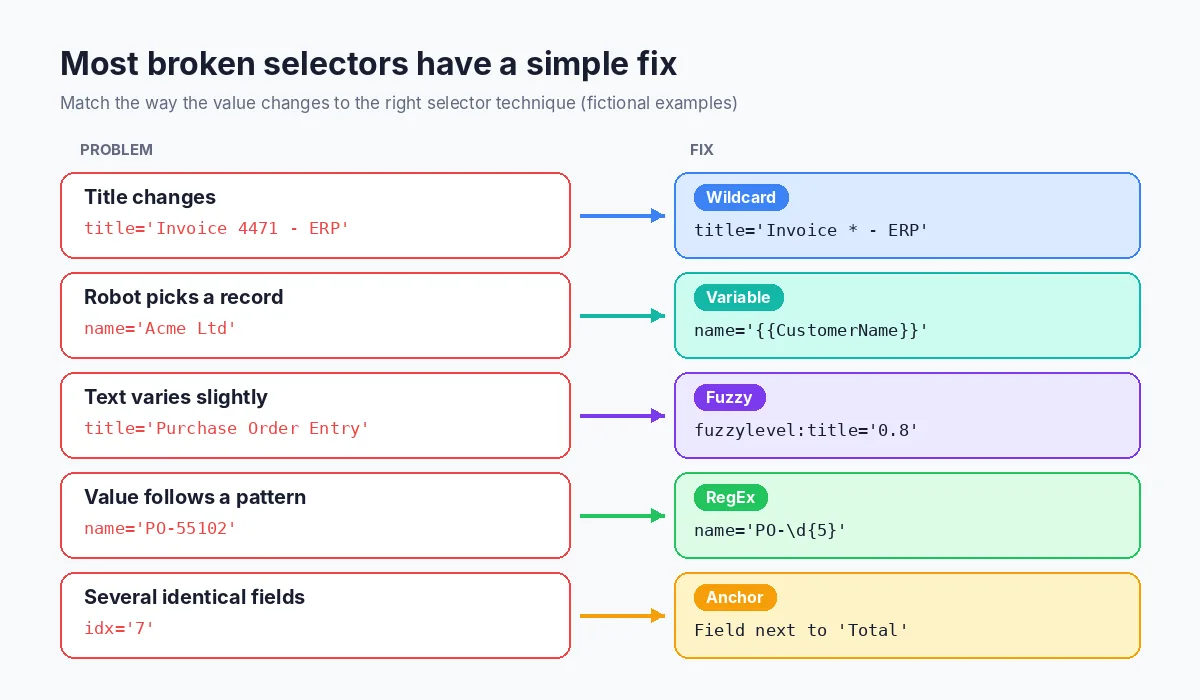
UiPath gives you four ways to handle values that change. Use the simplest one that works.
Wildcards
According to UiPath’s page on selectors with wildcards, * replaces zero or more characters and ? replaces exactly one character.
<wnd app='erpclient.exe' title='Invoice * - ERP' />
This matches “Invoice 4471 – ERP” and “Invoice 12 – ERP”. Keep the fixed part of the value; title='*' matches almost anything and can make the robot act on the wrong window.
Variables (dynamic selectors)
When the robot should pick a specific item each time, such as a menu option or customer row, put a variable in the selector. UiPath’s dynamic selectors page shows the syntax:
<ctrl name='{{MenuOption}}' role='menu item' />
You create the variable from an attribute value in the Selector Editor; arguments work the same way. Dynamic selectors pair well with Orchestrator queues, where each queue item tells the robot which record to open.
Fuzzy matching
Fuzzy search finds elements whose attribute text is similar rather than identical. You set it per attribute:
<wnd title='Purchase Order Entry' matching:title='fuzzy' fuzzylevel:title='0.8' />
fuzzylevel takes a value between 0 and 1: values closer to 1 demand a closer match, values closer to 0 accept looser ones. UiPath lists supported tags including wnd, html, webctrl, java, ctrl, uia, sap and rdp. If several elements match, the first one is used, so keep enough other attributes in the selector to narrow the search.
Regular expressions
When the changing part follows a pattern, RegEx search is more precise than a wildcard:
<uia automationid='CalculatorResults' name='Display is \d' role='text' matching:name='regex' />
Note two limits from UiPath’s documentation: process-name attributes such as app in <html app='firefox.exe'> do not support RegEx, and idx does not support fuzzy, RegEx or case-sensitive matching.
Which option to use
| Situation | Best option | Example |
|---|---|---|
| Part of a value changes unpredictably | Wildcard | title='Invoice * - ERP' |
| The robot must choose a known item | Variable | name='{{CustomerName}}' |
| Text varies slightly (spacing, typos, versions) | Fuzzy | fuzzylevel:title='0.8' |
| Value follows a pattern (numbers, codes) | RegEx | name='PO-\d{5}' |
| Several identical elements | Anchor or parent attributes, not idx | Field next to the label “Total” |
Modern targeting: Unified Target and anchors
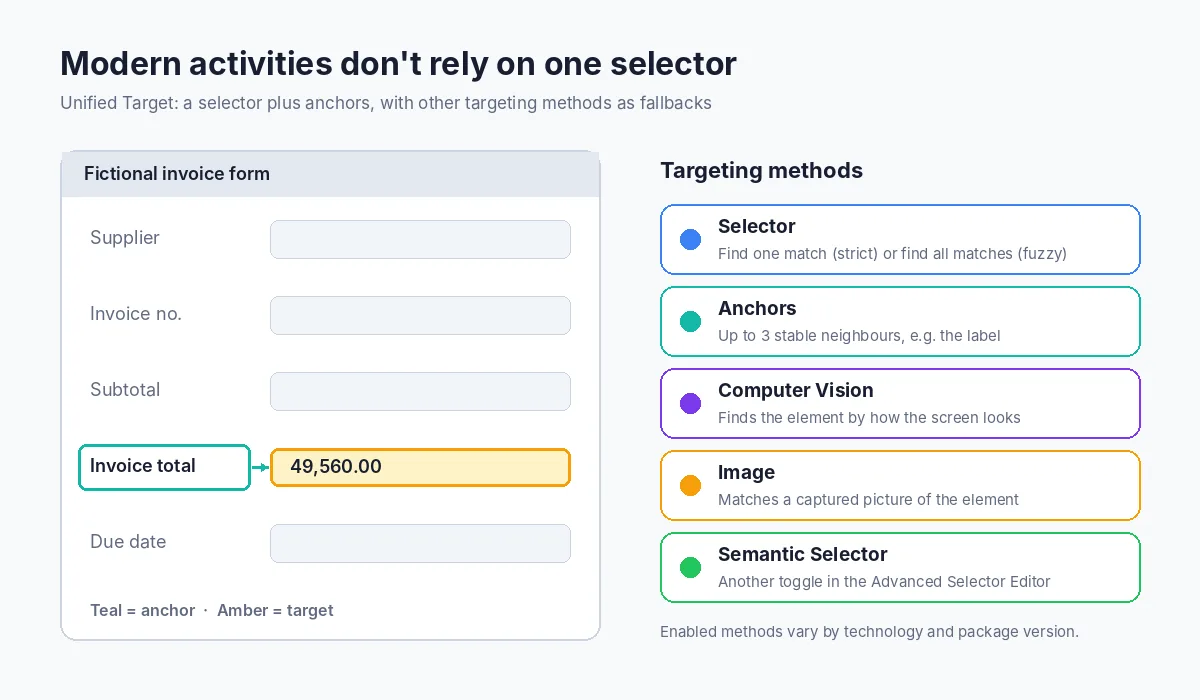
Modern UI Automation activities do not rely on one selector alone. They use a Unified Target: a set of targeting methods that act as fallbacks for one another. UiPath’s Advanced Selector Editor page lists toggles for Selector, Computer Vision, Image and Semantic Selector, for both the target and its anchors.
The selector itself has two strategies:
- Find one match, which corresponds to the earlier strict selector (an exact match).
- Find all matches, which corresponds to the earlier fuzzy selector, and is used together with anchors to pick the right element.
Anchors are nearby elements with stable text, such as the label “Invoice total” next to an input box. The documentation says you can add up to three anchors, and Studio adds an auto-anchor when it can identify one. Anchors are the best replacement for idx: instead of “the third text box”, the robot looks for “the text box next to Invoice total”.
Which methods are enabled by default depends on the technology (desktop, web, Java, SAP) and the package version, so check the targeting methods on each activity rather than assuming. Computer Vision and Image matching are useful backups for remote desktops and canvas-based screens, but they depend on how the screen looks, so keep a solid selector as the primary method.
Tools: UI Explorer, Object Repository and Healing Agent
UI Explorer and the Selector Editor
UI Explorer shows the visual tree of an application, every available attribute, and the selector being built. The buttons you will use most:
- Validate checks whether the selector finds an element right now.
- Highlight brings the matched element to the front so you can see what the robot will touch.
- Repair lets you re-indicate the same element when a selector is invalid.
- Indicate Anchor adds a stable neighbouring element.
UI Explorer also lets you switch UI frameworks: Default, Active Accessibility and UI Automation. UiPath recommends Active Accessibility only for legacy software when Default does not work, and notes that UI Automation does not support Chrome or Edge web pages.
Object Repository
The Object Repository “ensures the management, reusability, and reliability of UI elements by capturing them as objects in a DOM-like repository, sharable across projects.” Elements are organised as Application → Version → Screen → UI element, and each stored descriptor can hold selectors, anchors and image context. UiPath calls a UI descriptor “a superset of selectors.”
The practical win: when a screen changes, you update the element once in the repository (or in a shared UI library) and every workflow that uses it picks up the fix. For teams building on the REFramework, this keeps selector fixes out of the business logic.
Healing Agent
UiPath’s Healing Agent adds an AI layer on top of the Unified Target. It offers two things: recommendations (for example, suggested new selectors) and self-healing, which tries to recover a failing UI activity at runtime and “complements the already robust Unified Target fallback approach.” Its use cases include dynamic selectors, moved anchors, pop-ups that block the target, and renamed buttons.
According to the Healing Agent FAQ, it is available in Automation Cloud and Automation Suite, works only with UI Automation Modern activities, and applies only to processes run as jobs. Administrators can limit it to recommendations without automatic healing, and usage is licensed as an add-on. Treat it as a safety net that tells you which selectors need attention, not a replacement for designing them well.
Selector checklist
Use this list during development and code review:
- Use Application/Browser holds the window selector; inner activities use partial selectors.
- No dates, record numbers, user names or session IDs left in attribute values.
- Changing parts replaced with
*,?, a variable, fuzzy or RegEx matching. - No
idx(or a low, justified one); anchors used for repeated elements. - Every selector validated and highlighted against test and production-like screens.
- Shared elements stored in the Object Repository or a UI library.
- Workflow Analyzer run, including UI-REL-001.
- Error handling and retries in place, with a screenshot on failure.
- Target app and robot run with the same privileges.
Illustrative example (hypothetical numbers): a team with 40 UI activities in an invoice bot finds that 12 selectors contain the invoice number in the window title. Replacing that part with a wildcard in the Use Application/Browser window selector removes all 12 points of failure with one change.
Frequently asked questions
What is a selector in UiPath?
A selector is an XML fragment that stores the attributes of a UI element and its parent elements, so the robot can find that element on screen at run time.
What is the difference between a full and a partial selector?
A full selector includes the top-level window. A partial selector does not, and is used by activities inside a Use Application/Browser container that holds the window selector.
How do I make a UiPath selector dynamic?
Replace the changing attribute value with a variable in double curly braces, for example name='{{CustomerName}}', or use wildcards for values you do not need to control.
What do the asterisk and question mark mean in UiPath selectors?
The asterisk replaces zero or more characters and the question mark replaces exactly one character.
Why should I avoid idx in selectors?
idx depends on the order of matching elements, which changes when the screen changes. UiPath’s Workflow Analyzer rule UI-REL-001 flags large idx values; use other attributes, parent elements or anchors instead.
What is a fuzzy selector?
It matches attribute text that is similar rather than identical, using matching:<attribute>='fuzzy' and a fuzzylevel between 0 and 1. In modern activities, the “Find all matches” selector strategy replaces the old fuzzy selector option.
Does UiPath Healing Agent fix selectors automatically?
It can, for UI Automation Modern activities run as jobs in Automation Cloud or Automation Suite, if self-healing is enabled. Administrators can also limit it to recommendations only.
Should I use the Object Repository for every project?
It is most useful when several workflows use the same application screens, because a fix to one stored element reaches every workflow that uses it.
Conclusion: design selectors for change
Reliable UiPath selectors are not about luck. Start from constant attributes, keep window and element selectors separate, handle changing values with wildcards, variables, fuzzy or RegEx matching, and replace idx with anchors. Then add the Object Repository for reuse and let Healing Agent’s recommendations point you to fragile spots.
If your bots break every time an application changes, we can review your selectors and error handling together. See our automation services or get in touch.