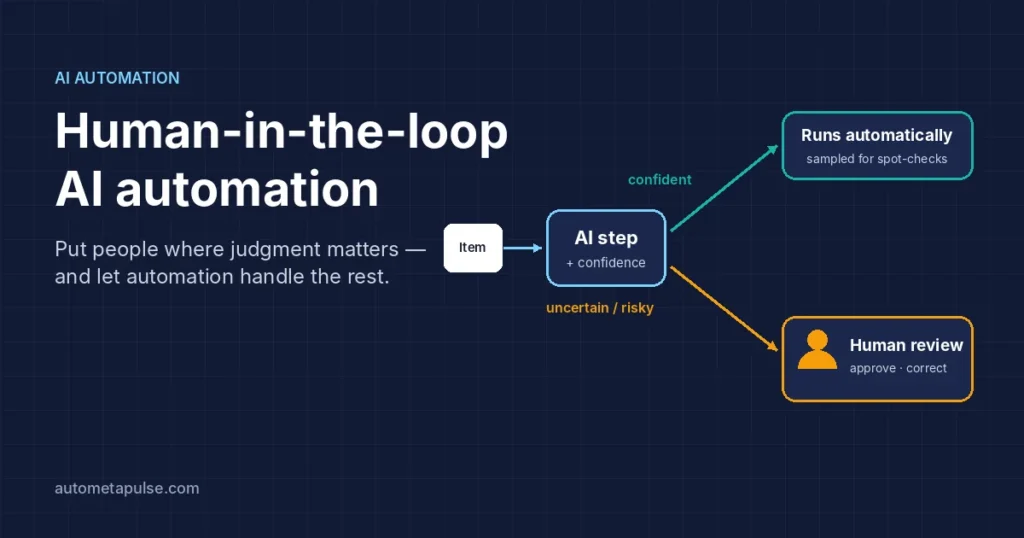
Human-in-the-loop automation means an AI-powered workflow runs on its own until it reaches a decision it shouldn’t make alone, then pauses for a person to check, correct or approve. Done well, people review only the cases that need judgment. Done badly, they either rubber-stamp everything or review nothing at all.
This guide gives you a practical way to decide where human review belongs in an AI workflow, the four review patterns that cover most cases, how Power Automate, UiPath and Automation Anywhere support them, and how to measure whether your review step is working.
In this guide
- Why AI automation needs human review
- A simple rule: risk × confidence
- Four human-in-the-loop patterns
- How the main platforms support it
- Designing a review step people can do quickly
- Measuring it
- Governance and the EU AI Act
- FAQs
Why AI automation needs human review
Traditional rule-based automation does exactly what it’s told. If a rule says “copy field A to field B”, it does that every time.
AI steps are different. A document model, a language model or a classifier gives its best guess, often with a confidence score. Most guesses are right; some are confidently wrong. That changes the design question from “does the bot follow the rules?” to “what happens when the AI is unsure or wrong?“
Human review answers that question. It catches errors before they reach a customer, a payment or a record, and it gives you the corrected examples you need to improve the model.
A simple rule for where to add review: risk × confidence
Two questions decide almost every case:
- How bad is it if this step is wrong? (risk)
- How sure is the AI that it’s right? (confidence)
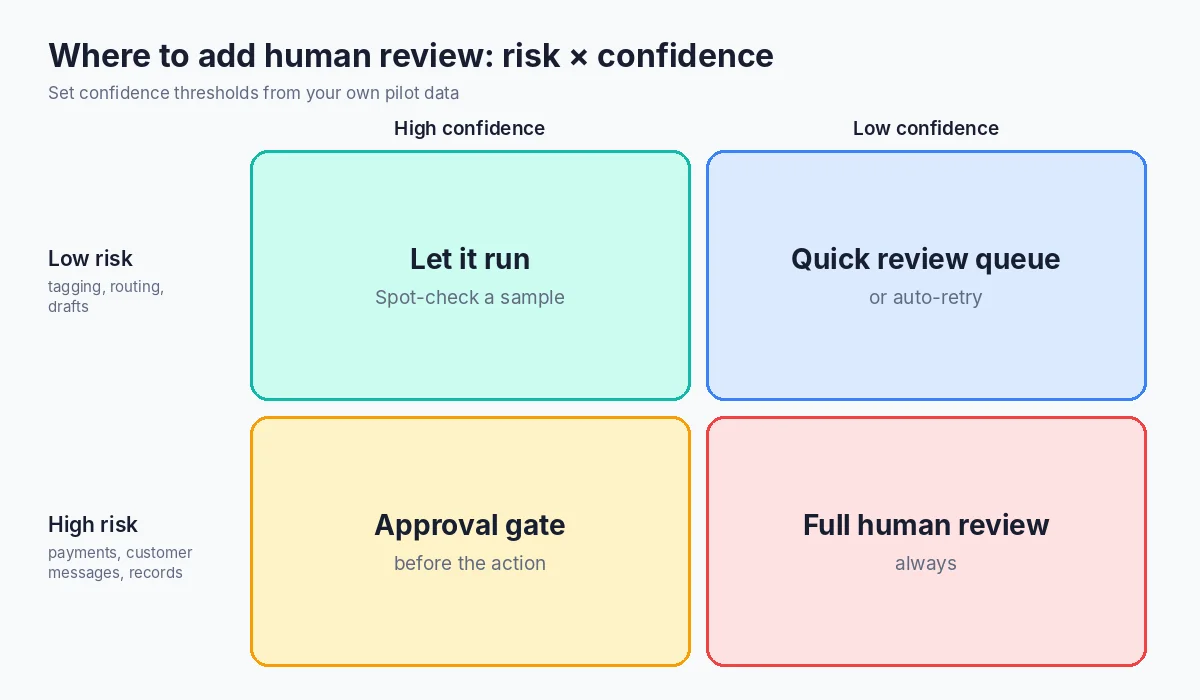
| High confidence | Low confidence | |
|---|---|---|
| Low risk | Let it run — spot-check a sample | Auto-retry or send to a quick review queue |
| High risk | Approval gate before the action | Full human review — always |
Examples of high-risk steps: paying money, changing bank details, sending a message to a customer, deleting or overwriting records, decisions about a person (hiring, credit, eligibility).
Examples of low-risk steps: tagging a document, drafting a summary someone will read anyway, routing a ticket to a team.
Confidence thresholds should come from your own pilot data, not from a guess. Run a few hundred real items, compare the AI’s output with the correct answer, and see where errors cluster. Then set the threshold where errors become frequent.
Four human-in-the-loop patterns
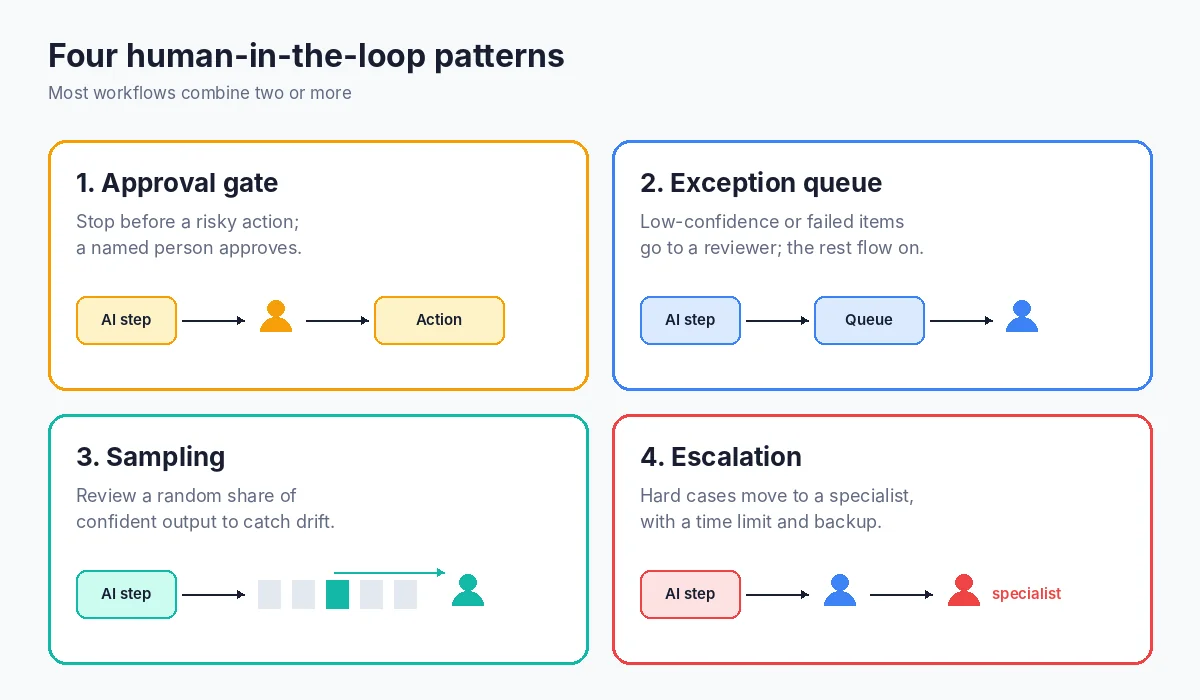
1. Approval gate
The workflow stops before an irreversible or high-impact action and waits for a named person to approve or reject. Use it for payments, outbound messages and record changes.
2. Exception queue
Items that fail a rule or fall below the confidence threshold go to a queue. A reviewer corrects them and the workflow resumes. Everything else flows straight through. This is the workhorse pattern for document processing.
3. Sampling (spot-checks)
Even confident, low-risk output gets a random sample reviewed — for example a small percentage of items each week. Sampling catches slow drift that confidence scores alone won’t show.
4. Escalation
When a reviewer is unsure, or a case is unusual, it moves to a more senior person or a specialist. Escalation needs a time limit and a backup reviewer, or items wait forever.
Most real workflows combine these: an exception queue for low-confidence data, an approval gate before payment, sampling on everything, and escalation for the hard cases.
How the main platforms support human review
You don’t need to build these patterns from scratch. Each major automation platform has a built-in way to pause for a person.
Microsoft Power Automate and Copilot Studio
- The Approvals connector’s Start and wait for an approval action sends a request people can answer in Outlook, Microsoft Teams or the Power Automate action center (Microsoft Learn).
- The Human in the loop connector adds Request for information (preview), which asks a person for specific inputs and passes their answer to the next steps, and Run a multistage approval (preview). It’s a standard connector usable in agent flows (Microsoft Learn).
- AI Builder document models return a confidence score for each field, which you can use in a condition to route uncertain items to review (Microsoft Learn).
UiPath
- In UiPath Maestro, a User task adds a human step to a process. Its implementation can create a task in an Action Center Action app, where a person completes a form before the process continues (UiPath docs).
- Action Center is also where unattended robots hand work to people in classic UiPath automations, such as validating extracted documents.
Automation Anywhere
- Document Automation sends documents to validation when required fields are missing, data-type checks fail, fields have low confidence, or a custom validation rule is triggered (Automation Anywhere docs).
- Validators work in the Control Room or as tasks in Automation Co-Pilot. Errors must be fixed before submission; warnings can be submitted as they are.
| Platform | Human step | Where reviewers work |
|---|---|---|
| Power Automate | Approvals; Human in the loop connector | Outlook, Teams, action center |
| UiPath | Maestro User task; Action Center tasks | Action Center |
| Automation Anywhere | Document Automation validation | Control Room, Automation Co-Pilot |
Feature names and preview status change often, so check each vendor’s current documentation before you design around a specific action.
Designing a review step people can do quickly
The review screen is where human time now goes, so design it for speed and accuracy:
- Show only what needs a decision. Highlight the uncertain field; don’t make reviewers re-check the whole record.
- Show the evidence. Put the source document or text next to the extracted value.
- Say why it’s here. “Total below confidence threshold” is better than “Please review”.
- One clear action. Approve, correct-and-approve, or reject with a reason.
- Capture the correction. Store the before and after values; they’re your best training and tuning data.
- Set a time limit. Add reminders and a backup reviewer so nothing stalls.
Watch out for automation bias
People tend to agree with a confident-looking machine. If reviewers approve almost everything without changes, they may not be reviewing at all. Counter it by:
- occasionally inserting known-wrong test items and checking they’re caught,
- rotating reviewers,
- tracking how long reviews take — very fast approvals on complex items are a warning sign.
Measuring whether human review is working
| Metric | What it tells you |
|---|---|
| Straight-through rate | Share of items that needed no human touch |
| Review rate | Share sent to a person — too high means thresholds or the model need work |
| Override rate | How often reviewers change the AI’s output |
| Errors after review | Mistakes that still got through — the number that matters most |
| Time to decision | How long items wait for a person |
| Reviewer time per item | Where the remaining effort goes |
A healthy system has a falling review rate over time and a low error rate after review. If the review rate falls but errors rise, thresholds are too loose.
Governance and the EU AI Act
Good human review is also good governance: it gives you a record of who decided what, when and why.
If you build or deploy AI that falls under the EU AI Act’s high-risk categories, human oversight becomes a legal requirement under Article 14: people must be able to understand the system’s output, stay aware of automation bias, and override or stop it. Following the Digital Omnibus on AI, which entered into force on 27 July 2026, the high-risk obligations apply from 2 December 2027 for Annex III systems and 2 August 2028 for AI in regulated products (Annex I) (White & Case).
Most business-process automations — invoice capture, ticket routing, document summaries — are not high-risk under the Act. But the same habits help everywhere: log every decision, name the reviewers, train them, and test that overriding and stopping the AI actually works. This isn’t legal advice; check your own situation with a qualified adviser.
Common mistakes
- Reviewing everything. It feels safe, but it removes most of the value and leads to rubber-stamping.
- Reviewing nothing. Confidence scores are not a guarantee.
- Guessing thresholds. Set them from pilot data and revisit them monthly.
- No feedback loop. Corrections that aren’t stored can’t improve the model or the rules.
- No owner. Every review queue needs a person accountable for clearing it.
Frequently asked questions
What is human-in-the-loop automation?
An automated workflow, usually with an AI step, that pauses for a person to check, correct or approve certain decisions before continuing.
When should a workflow include human review?
When a mistake would be costly or hard to undo, or when the AI’s confidence is below a threshold you’ve set from real data.
Doesn’t human review defeat the point of automation?
No. The goal is to review exceptions, not every item. Most items flow straight through; people handle the few that need judgment.
How do I choose a confidence threshold?
Run a pilot on real items, compare the AI’s output with the correct answers, and set the threshold where errors start to become frequent. Revisit it as the model and data change.
Can Power Automate pause a flow for human input?
Yes. The Approvals connector waits for an approve or reject decision, and the Human in the loop connector’s Request for information action (preview) collects specific inputs from a person.
How does UiPath handle human review?
Through Action Center tasks. In UiPath Maestro, a User task can create an Action Center task that a person completes before the process continues.
What is automation bias?
The tendency to accept a machine’s output without enough scrutiny. Test items, reviewer rotation and review-time tracking help counter it.
Is human oversight legally required?
For AI systems classed as high-risk under the EU AI Act, yes, from 2 December 2027 for Annex III systems. For most routine business automation it isn’t legally required, but it’s still good practice.
Conclusion: put people where judgment matters
Human-in-the-loop design isn’t about distrusting AI. It’s about putting people exactly where their judgment adds the most value — before risky actions and on uncertain outputs — and letting automation handle the rest.
Start small: pick one workflow, map where errors would hurt, run a pilot to set your thresholds, and design a review screen that takes seconds, not minutes.
At Autometapulse, we help teams design AI automations with the right review points built in — across Power Automate, UiPath and AI workflows. For a worked example, see our guide to invoice extraction automation with Power Automate.
Discuss your automation workflow → Tell us which process you want to automate and where the risky decisions are, and we’ll suggest where human review should sit.