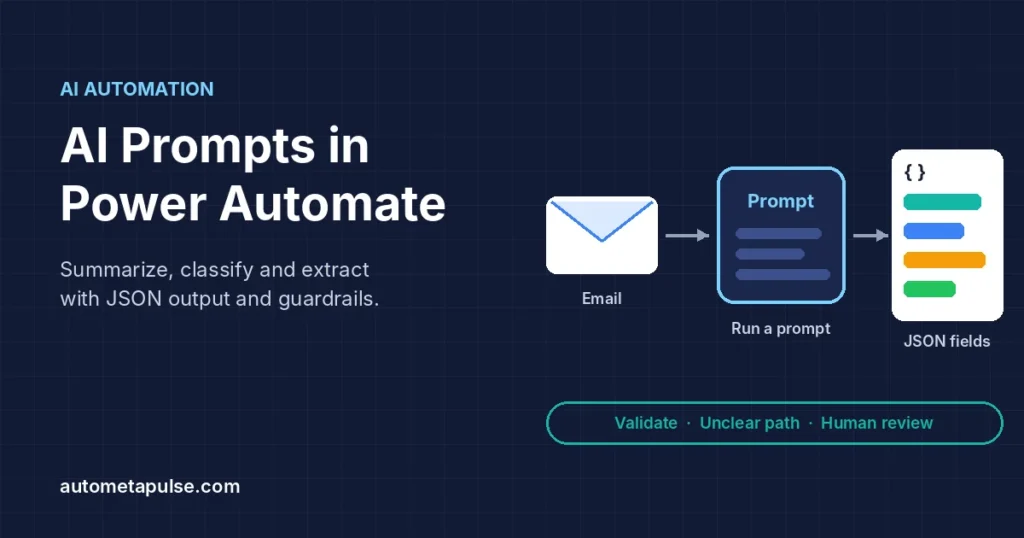
AI prompts in Power Automate let a cloud flow hand text, images or PDFs to a generative AI model with your own instructions, and get back a summary, a category or structured fields. You build the prompt once in prompt builder, call it with the Run a prompt action, and use the answer in later steps. The part that decides whether it is safe to rely on is not the prompt itself but the guardrails around it: fixed output formats, validation, and human review.
In this guide
- What AI prompts in Power Automate are
- How to add a prompt to a cloud flow
- Three patterns: summarize, classify, extract
- JSON output for reliable flows
- Guardrails that keep AI steps safe
- Models, settings and credits
- Frequently asked questions
What AI prompts in Power Automate are
A prompt is a natural language instruction that tells a generative AI model to perform a task. In the Microsoft world you create prompts in prompt builder, which is shared by Power Automate, Power Apps and Copilot Studio. You may still see them called AI Builder prompts in older guides and in the Power Automate documentation. The idea is the same: a reusable instruction with input variables that a flow fills in at run time.
A prompt has three parts:
- Instructions: what you want the model to do, written in plain language.
- Inputs: the dynamic values the flow passes in. Microsoft lists three input types: Text, Image or document, and Power Fx.
- Output: plain text by default, or JSON when you want named fields your flow can use.
Prompts need an environment in a supported region with Microsoft Dataverse installed. New prompts are private by default, so share them deliberately.
How to add a prompt to a cloud flow
The Power Automate action is called Run a prompt. Microsoft’s documentation notes that since May 2025 the old Create text with GPT using a prompt action has been renamed Run a prompt, so tutorials using the old name still apply.
A typical setup looks like this:
- Create the prompt. In Power Automate, open the AI hub and go to Prompts, then build a new prompt. Write the instructions and add an input, for example
EmailBodyas a Text input. - Add sample data and test. Select the input in the instructions to add sample data, then test. Testing in prompt builder does not consume credits, so iterate here rather than in live runs.
- Choose the output. Leave it as text for summaries, or switch to JSON for classification and extraction (covered below).
- Save the prompt, then open your cloud flow.
- Add the Run a prompt action and pick your prompt from the Prompt list. Its inputs appear under the dropdown, and you fill them with dynamic content from earlier steps, such as the body of an incoming email.
- Use the output in later actions, such as a Teams post or a Switch that routes the item.
Microsoft’s walkthrough is in Use your prompt in Power Automate.
Inputs and their limits
| Input type | What you can pass | Documented limits |
|---|---|---|
| Text | Email bodies, form answers, ticket text, notes | Depends on the model’s token limit |
| Image or document | PNG, JPG, JPEG and PDF files | All files under 25 MB in total; documents under 50 pages; processing stops with a timeout after 100 seconds |
| Power Fx | A value calculated with a Power Fx formula | Referenced as Input.'Your input name' |
Word, Excel and PowerPoint files can be analysed as document inputs when the code interpreter setting is turned on for the prompt. Microsoft also states that inputs can’t contain instructions, for security reasons. Treat every input as data to be processed, never as a second set of instructions.
Three patterns: summarize, classify, extract
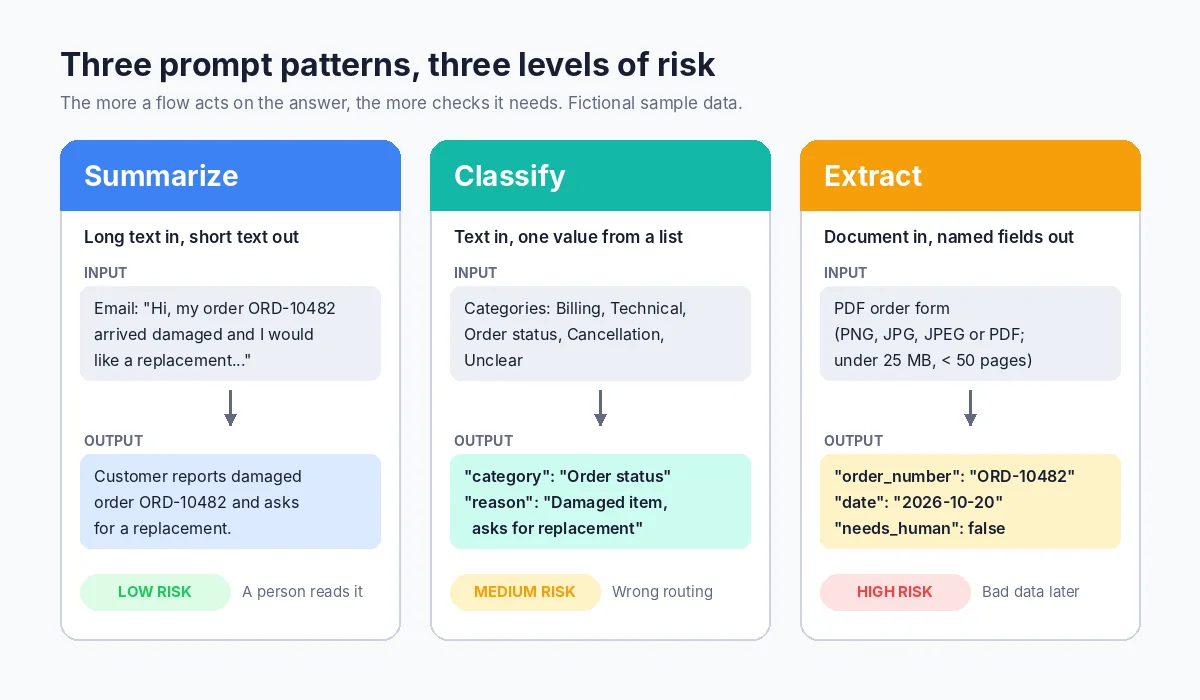
Most AI steps in a business flow fall into one of three patterns, each with a different risk level.
1. Summarize
The flow passes a long text in and gets a short text back. Good examples: a three-line summary of a support email posted to a Teams channel, a digest of meeting notes, or a short description of a long form submission.
Example instructions (illustrative):
Summarize the customer email below in no more than three short sentences.
Use only information that appears in the email. Do not add advice or promises.
If the email is empty or unreadable, reply with: No summary available.

Email: {EmailBody}
Summaries are usually low risk because a person reads them.
2. Classify
The flow passes text in and gets back one value from a fixed list, such as a category or priority, then branches on it. A wrong answer here can quietly send work to the wrong team.
Example instructions (illustrative):
Classify the request below into exactly one category from this list:
Billing, Technical issue, Order status, Cancellation, Unclear.
If the request matches more than one category or none, choose Unclear.
Return JSON with the fields "category" and "reason" (one sentence).

Request: {EmailBody}
The Unclear option gives the model a safe answer when the input does not fit, and gives your flow a path to a person instead of a forced guess.
3. Extract
The flow passes a document or text in and gets structured fields back, such as an order number, date or customer name. It replaces copy and paste, and needs the most checking because extracted values often go straight into another system.
Microsoft warns that low-quality images or documents can produce incorrect extractions. For invoices, also consider a purpose-built document model; our invoice extraction guide walks through that route.
| Pattern | Typical output | Risk if wrong | Minimum guardrail |
|---|---|---|---|
| Summarize | Short text | Low: a person reads it | Length limit, “use only this text”, fallback reply |
| Classify | One value from a list | Medium: wrong routing | Fixed list, Unclear option, Switch with a default branch |
| Extract | Named fields | High: bad data in other systems | JSON output, field validation, human review for exceptions |
JSON output for reliable flows
A flow needs predictable fields, so prompt builder can return JSON instead of text. You choose JSON in the output setting, and the format starts as Auto detected. If you edit the example JSON, the format becomes Custom.
Three documented details matter:
- The format is locked when you save. Saving the prompt locks the latest auto-detected or custom format, and you can’t modify the JSON schema later. Plan the fields before you save, and expect to create a new prompt version if they change.
- Every value needs a key. A plain list such as
["abc", "def"]is not supported;[{"Field1": "abc"}, {"Field1": "def"}]is. - A known error has a known fix. If you see “A JSON could not be generated”, Microsoft suggests adding the instruction “Don’t include JSON markdown in your answer”.
A good custom format for the classification example is small and flat (illustrative):
{
  "category": "Billing",
  "reason": "The customer asks why they were charged twice.",
  "order_number": "ORD-10482",
  "needs_human": false
}
Include a field such as needs_human so the model can flag cases it is unsure about. Details are in Process responses with JSON output.
Guardrails that keep AI steps safe
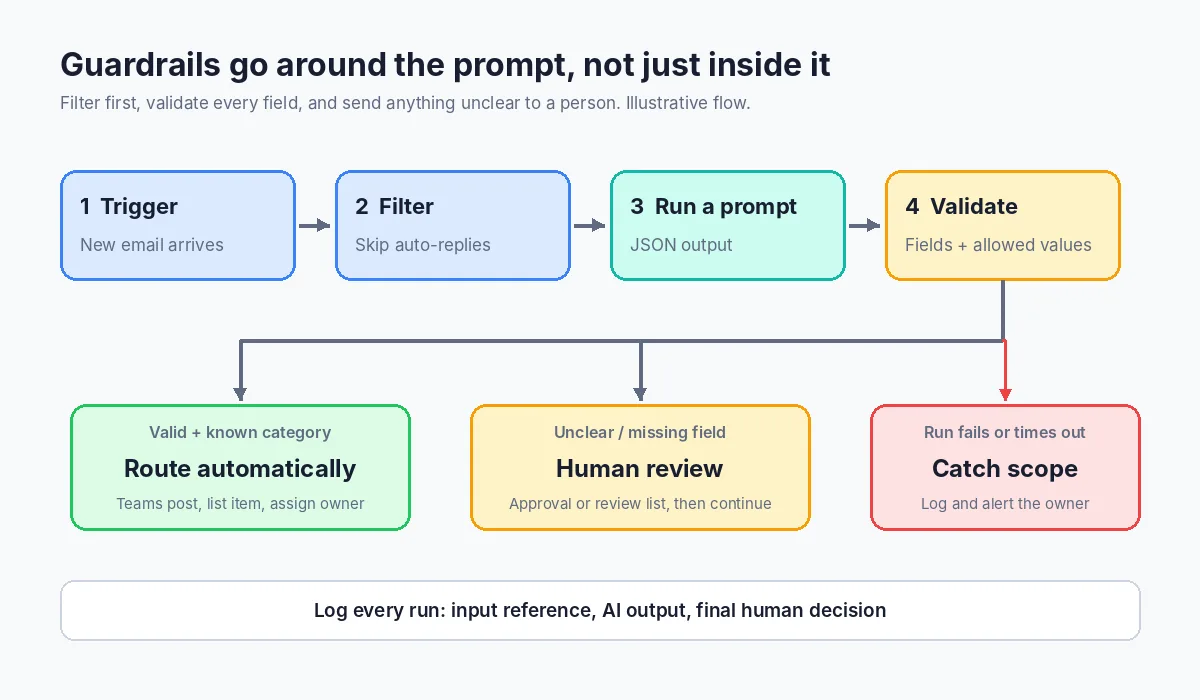
Microsoft’s documentation is direct: models can sometimes generate misleading or fabricated information and are susceptible to prompt injection, and makers should add a human review step to make sure AI-generated content is accurate and appropriate before it is used. Guardrails are how you turn that advice into flow design.
Guardrails inside the prompt
- Constrain the answer. Give a fixed list of categories, a maximum length, or an exact JSON format. The narrower the task, the easier the answer is to check.
- Give a safe default. “If you are not sure, choose Unclear” or “reply with No summary available” gives the model a correct way to say no.
- Ground it in the input. Tell the model to use only the text provided and not to add facts, promises or advice.
- Keep temperature low. Temperature ranges from 0 to 1 and defaults to 0. For classification and extraction, leave it at 0 for more consistent answers.
Guardrails in the flow
- Validate before you act. After Run a prompt, check that required fields exist and look right: the category is one of your allowed values, the date parses, the order number matches your pattern. If not, route the item to review.
- Use a default branch. In a Switch on
category, the default case should go to a person, never to the most common team. - Add human review where it matters. Anything that sends a customer message, changes a record or approves money should pass through an approval or review list first. Our human-in-the-loop guide covers where to place it.
- Handle failures. Wrap the AI step in a scope so a failed or timed-out run is caught and logged instead of silently stopping. See Power Automate error handling for the Try, Catch and Finally pattern.
- Log what the AI decided. Store the input reference, the output and the final human decision as an audit trail.
Watch for prompt injection
Emails and documents come from outside your organization. Microsoft notes that images or documents can include hidden instructions that might override the original prompt. Your defence is the flow design above: narrow outputs, validation against allowed values, and no payment, permission change or customer message decided by a prompt alone.
Know what prompts are not for
Microsoft lists unsupported uses, including legal, financial or health-related guidance, future predictions, and mathematical or financial calculations. Calculate totals and dates with flow expressions, not with a prompt.
Models, settings and credits
Model choice
Prompts run on models managed by Microsoft, and you can change the model in the prompt’s settings. At the time of writing, Microsoft’s prompt model settings page lists GPT-4.1 mini as the default model, with other GPT models available at higher rates, and some models from other providers marked as experimental. The list changes often; start with the default model and move up only if testing shows you need to.
The same settings page includes content moderation levels (Low, Moderate as the default, and High) for Microsoft-managed models. Microsoft’s prompts FAQ also states that customer prompts, grounding data and responses are not used to train or improve the Azure OpenAI foundation models.
Credits and cost
Prompt runs consume capacity based on input tokens, output tokens and the model you use. Testing in prompt builder is free; live runs are not. Microsoft is ending AI Builder credits: new customers can’t buy the AI Builder capacity add-on and must buy Copilot Credits, and the end of AI Builder credits page lists 1 November 2026 as the end of life for seeded AI Builder credits, with no automatic conversion to Copilot Credits. Microsoft states that AI Builder features continue to work using Copilot Credits.
To keep costs down, send only the text the prompt needs, ask for short structured answers, and filter out auto-replies and duplicates with normal conditions before the AI step.
Check your own entitlements with your Microsoft admin or partner.
Frequently asked questions
What is the Run a prompt action in Power Automate?
Run a prompt is the AI Builder action that sends inputs from your flow to a prompt you created in prompt builder and returns the model’s response. It replaced the action previously called Create text with GPT using a prompt.
Are AI Builder prompts and prompt builder prompts the same thing?
Yes. Microsoft now describes them as prompts created in prompt builder, used across Power Automate, Power Apps and Copilot Studio. Older articles and some documentation still use the name AI Builder prompts.
Can a prompt read PDFs and images in a flow?
Yes. The Image or document input accepts PNG, JPG, JPEG and PDF files. All files together must be under 25 MB, documents must have fewer than 50 pages, and processing times out after 100 seconds.
How do I get structured fields instead of a paragraph?
Switch the prompt’s output to JSON and define the format before you save. The format is locked when the prompt is saved, so plan your field names first.
Is my data used to train the model?
Microsoft’s prompts FAQ states that customer prompts, grounding data and model responses are not used to train or improve the Azure OpenAI foundation models.
Should AI prompt results trigger actions automatically?
For low-risk outputs such as an internal summary, often yes. For anything that sends customer messages, changes records or moves money, add validation and a human review step first, as Microsoft recommends.
Conclusion: let AI read, let the flow decide
AI prompts in Power Automate are a practical way to summarize, classify and extract information from emails, forms and documents without building a custom model. The value comes from treating the prompt as one step in a controlled flow: a narrow task, a fixed JSON format, validation of every field, a safe Unclear path, and human review for anything that matters.
Start with one low-risk summary or triage flow, measure how often people override the AI’s answer, and widen the scope from there. For more ideas, browse our AI Automation articles, or ask us to review where prompts fit in your process.
Discuss your automation workflow →