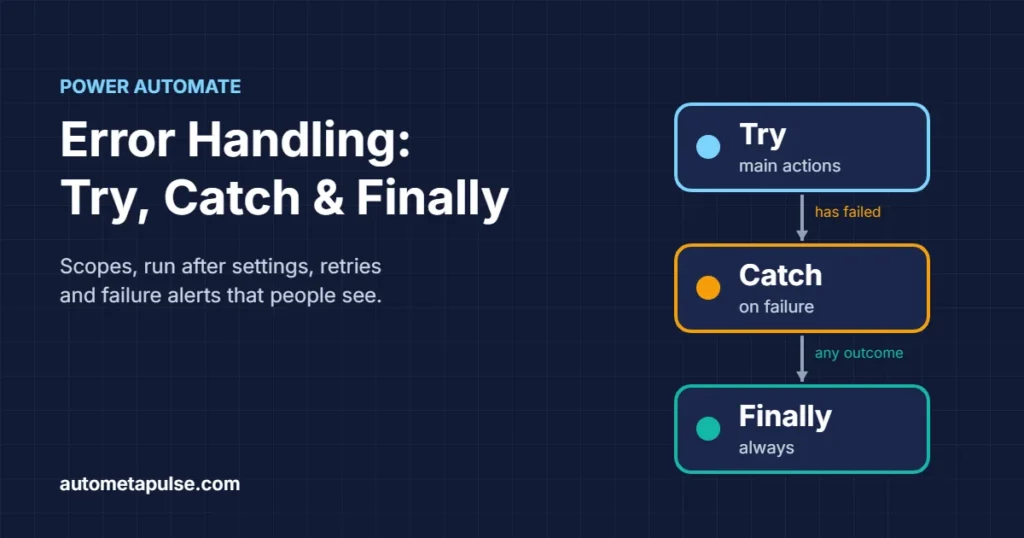
Power Automate error handling works best when you group your flow into three scopes — Try, Catch and Finally — and connect them with Configure run after. Try holds the real work, Catch runs only when Try fails or times out, and Finally runs no matter what happened. Add sensible retry policies and a clear failure alert, and a broken flow stops being a silent problem.
In this guide
- Why flows need error handling
- How Configure run after works
- Building the Try, Catch and Finally pattern
- Retry policies for temporary failures
- Getting the real error message out of a scope
- Alerting and logging failures
- Common mistakes to avoid
- Frequently asked questions
Why flows need error handling
By default, every action in a cloud flow runs only if the action before it succeeded. When one action fails — a SharePoint list is renamed, a connection expires, an API returns a 500 error — the actions after it are skipped. The run is marked as failed in the run history, and that is usually where the story ends.
In practice this means:
- Nobody is told. The flow owner may get an automated failure email, but the people who depend on the process often find out only when a customer, supplier or colleague asks what happened.
- Work is left half-done. A record may have been created in one system but not updated in another.
- Fixing it takes detective work. Someone has to open the run history, find the failed run and expand each action to see what went wrong.
Good error handling makes sure failures are caught, reported and cleaned up predictably. If you have read our guide to UiPath REFramework, the idea will feel familiar: separate the happy path from the recovery path.
How Configure run after works
Every action in Power Automate has a Configure run after setting (in the new designer it sits in the action’s Settings tab). It decides which outcome of the previous action allows this action to start. There are four statuses you can tick:
| Run after status | The action runs when the previous action… | Typical use |
|---|---|---|
| Is successful (default) | finished without errors | Normal, happy-path steps |
| Has failed | returned an error | Catch logic, alerts |
| Is skipped | did not run because something earlier failed | Catch or Finally logic further down a chain |
| Has timed out | exceeded its timeout | Catch logic for slow systems |
You can tick more than one box. Ticking all four means “run regardless of the outcome”, which is exactly what a Finally block needs.
Microsoft’s error handling guidance for Power Automate recommends using these settings together with scopes, because setting run after on dozens of individual actions quickly becomes unmanageable.
Building the Try, Catch and Finally pattern
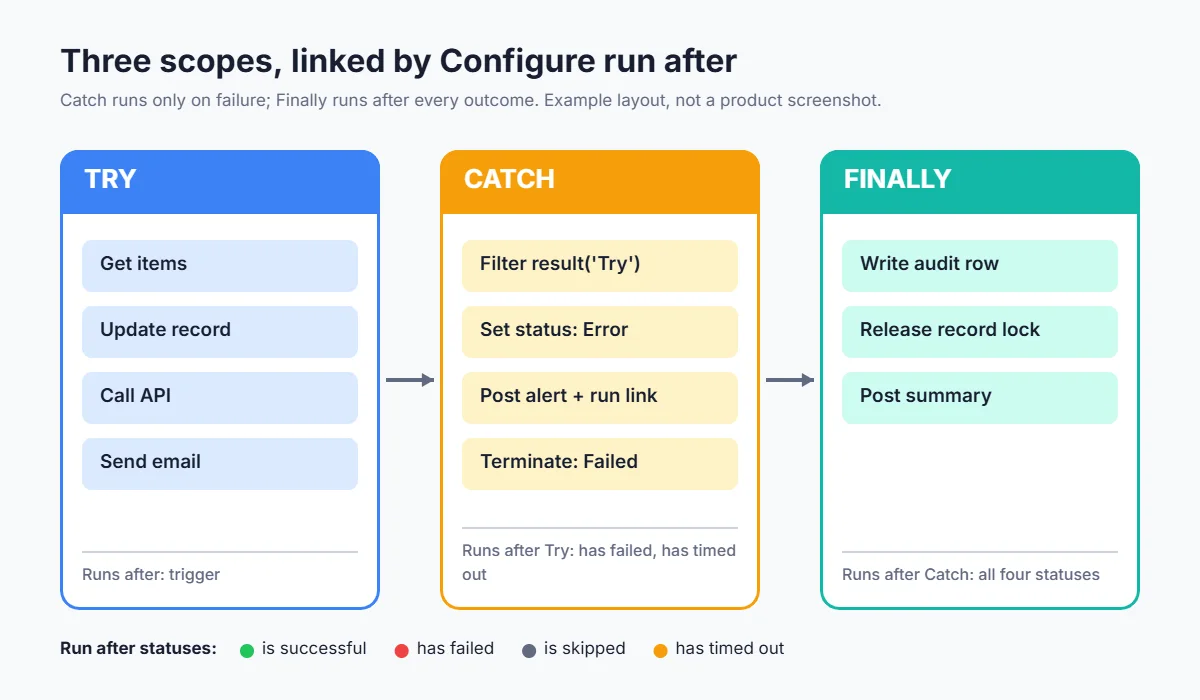
A Scope is a container action that groups other actions. According to the Power Automate scopes documentation, when anything inside a scope fails, the scope reports a single Failed status for the whole group — you expand the scope to see which action caused it. That single status is what makes the pattern work: you set run after on three scopes instead of on every action.
Step 1: Create the Try scope
Add a Scope action directly under the trigger and rename it Try. Move every action that does the real work inside it — getting items, updating records, sending emails, calling APIs.
Keep the trigger outside the scope. Microsoft’s scopes page notes that triggers and response actions should stay outside scopes.
Step 2: Create the Catch scope
Add a second scope under Try and rename it Catch. Open Configure run after on Catch and select:
- Has failed
- Has timed out
Clear Is successful. Catch now runs only when something went wrong in Try. Inside Catch, put the actions that handle the failure: send an alert, write a log entry, update a status column to “Error”, or undo a partial change.
Step 3: Create the Finally scope
Add a third scope under Catch and rename it Finally. Configure its run after on Catch with all four statuses ticked: is successful, has failed, is skipped and has timed out.
Why all four? When Try succeeds, Catch is skipped. When Try fails, Catch runs and either succeeds or fails. Finally needs to run in every one of those cases. Typical Finally actions are writing an audit row, releasing a “lock” flag on a record, or posting a completion message.
Step 4: Mark the run as failed when it should be
There is one subtlety. If Try fails but Catch and Finally run cleanly, the run history may show the run as succeeded, because the last actions in the flow succeeded. That hides real problems from anyone scanning the run history or building reports on it.
The fix is a Terminate action at the end of Catch (or after Finally, with its own run after condition) with the status set to Failed. Microsoft’s guidance describes using Terminate to stop the flow and set the status to “Failed” after a critical error. Terminate can also end a run as Cancelled or Succeeded, but Failed is the one you want for errors. Note that Terminate cannot be placed inside an Apply to each or Do until loop.
Here is the finished structure:
| Scope | Run after setting | What goes inside |
|---|---|---|
| Try | Directly after the trigger | All the business actions |
| Catch | Try: has failed, has timed out | Alert, log, status update, Terminate (Failed) |
| Finally | Catch: all four statuses | Audit log, clean-up, release locks |
Retry policies for temporary failures
Not every failure deserves the Catch block. Many errors are temporary: a service is throttling requests or briefly unavailable. For these, a retry policy on the individual action is the right tool.
Open an action’s Settings and find Retry policy. You can choose a fixed interval, an exponential interval, or no retries. Microsoft’s guidance prefers exponential retries, because the wait grows with each attempt and gives a struggling service room to recover.
What the defaults look like, according to Power Automate limits and configuration:
| Setting | Documented value |
|---|---|
| Default policy (Medium and High performance profiles) | Up to 12 retries, exponentially increasing intervals, up to about 1 hour for the last retry |
| Default policy (Low performance profile) | Up to 2 retries, exponentially increasing intervals, up to about 10 minutes for the last retry |
| Maximum retry attempts you can set | 90 |
| Minimum / maximum retry delay | 5 seconds / 1 day |
The underlying workflow engine (shared with Azure Logic Apps) retries a request when it times out or returns a 408, 429 or 5xx response, as described in Microsoft’s Logic Apps error and exception handling article. A 400 “bad request” or 404 “not found” will not be fixed by retrying, so those land in Catch — which is exactly what you want.
A practical rule: let retries handle temporary problems, and let Catch handle permanent ones.
Getting the real error message out of a scope
An alert that just says “the flow failed” is not much help. You want the name of the failed action and its error message. The result() expression gives you this.
result('Try') returns an array describing each top-level action inside the Try scope, including its name, status, inputs and outputs. Inside Catch:
- Add a Filter array action.
- Set From to
result('Try'). - Set the condition to
item()?['status']is equal toFailed. - Use the filtered output in your alert — for example,
first(body('Filter_array'))?['name']for the action name andfirst(body('Filter_array'))?['outputs']for its details.
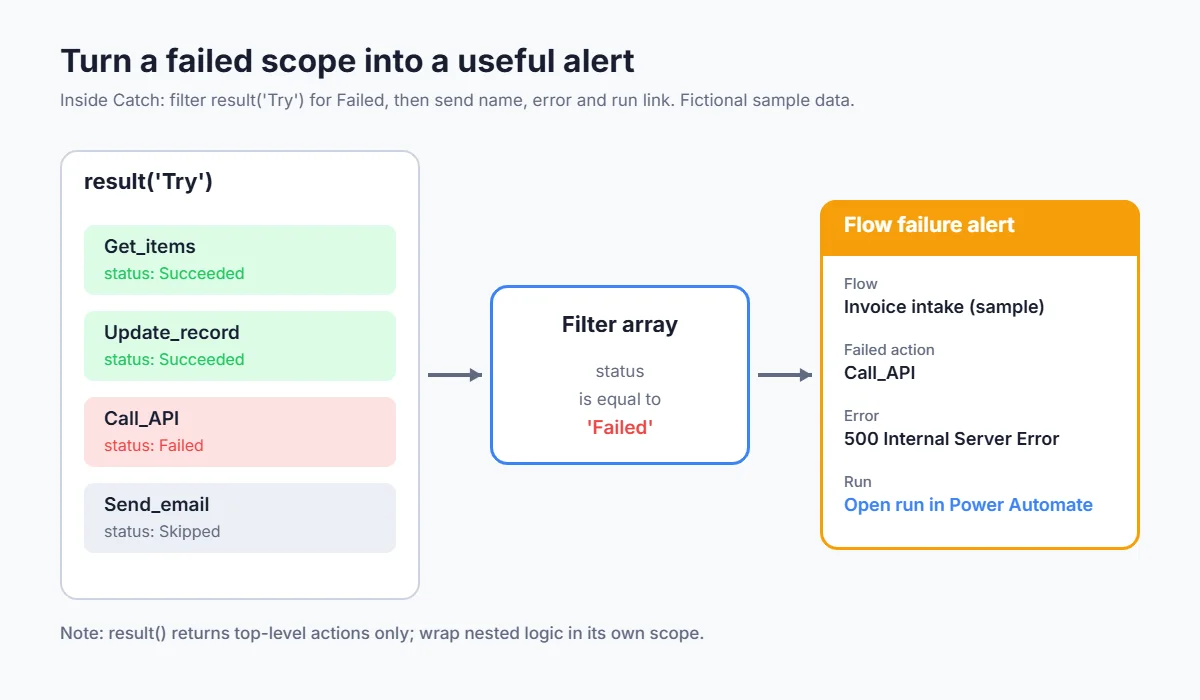
One limitation matters here: result() returns only the top-level actions in a scope, not actions nested inside a Condition or Switch within it. If your Try scope contains deeply nested logic, either keep the critical actions at the top level of Try or add an inner scope around the nested section and check that scope’s result too.
Alerting and logging failures
A useful failure alert answers three questions: which flow, what failed, and where can I see it?
Include a direct link to the run
The workflow() expression returns details about the current flow and run, including the environment name, the flow’s internal name and the run ID. Microsoft’s guidance shows how to combine these into a link to the run in make.powerautomate.com. Put that link in your Teams message or email so the person on call can open the failed run with one click instead of searching for it.
Send alerts where people will see them
Common choices are:
- A message in a dedicated Teams channel for flow failures
- An email to a shared support mailbox (not one person’s inbox)
- A new item in a SharePoint list or Dataverse table that acts as an error log
- A ticket in your service desk tool, if it has a connector
Microsoft’s guidance warns that heavy custom logging adds actions to every run and can affect performance, so log failures and key milestones, not every step.
Common mistakes to avoid
Forgetting to mark the run as failed. Without a Terminate (Failed) action, handled errors can look like successful runs.
Putting the trigger inside a scope. The trigger must stay at the top of the flow, outside any scope.
Catching everything, retrying nothing. If an API is briefly throttled, a retry policy fixes it silently. Sending every 429 to Catch creates alert fatigue.
Nesting too deeply. Power Automate allows a maximum of eight nested levels of actions, including scopes, conditions, switches and loops. Flows beyond that depth do not save or run. If you are close to the limit, move part of the logic into a child flow.
Using one giant Try scope for a long flow. Several smaller Try/Catch pairs, one per stage, tell you which stage failed and allow stage-specific clean-up.
Forgetting long-running steps. Runs can last up to 30 days, including time spent waiting on approvals. If your flow waits on an approval, as in our Power Automate approval workflow guide, make sure a timeout in that stage is caught as well.
A worked example (illustrative)
Imagine an invoice flow similar to the one in our invoice extraction guide. Illustrative scenario, not a real client:
- Try: get the email attachment, extract the invoice fields, create a row in the finance list, and post an approval request.
- Catch: filter
result('Try')for the failed action, set the row’s status to “Needs attention”, post a Teams message with the action name, error text and run link, then Terminate as Failed. - Finally: write one audit row with the run ID, start time and final outcome.
With this design, the finance team sees a clear “Needs attention” status instead of a missing invoice, and the support person can open the exact run from the alert.
Frequently asked questions
What is the best way to handle errors in Power Automate?
Use the Try, Catch and Finally pattern: three scopes linked with Configure run after, plus retry policies on actions that call external services and a Terminate action that marks the run as failed when an error is handled.
Does Power Automate have a built-in try/catch action?
No. There is no single try/catch action. You build the pattern from Scope actions and the Configure run after setting, which is the approach Microsoft’s own guidance describes.
How do I make a step run only when a previous step fails?
Open the step’s Configure run after setting, tick Has failed (and usually Has timed out), and clear Is successful.
Why does my flow show as succeeded when an action failed?
If the failure is handled by a Catch scope and the remaining actions succeed, the run can be reported as succeeded. Add a Terminate action with the status Failed at the end of Catch so the run history reflects the real outcome.
How do I get the error message from a failed action inside a scope?
Use result('Your_Scope_Name') in a Filter array action and keep items whose status is Failed. The filtered item contains the action name and its outputs, including the error details.
How many times does Power Automate retry a failed action?
With the default policy on Medium and High performance profiles, up to 12 retries at exponentially increasing intervals; on the Low profile, up to 2. You can set a custom policy of up to 90 retries.
Can I use Terminate inside an Apply to each loop?
No. Terminate cannot be placed inside Apply to each or Do until loops. Set a variable in the loop and terminate after it finishes instead.
Conclusion: make failures visible and recoverable
Power Automate error handling is not about writing flows that never fail. It is about making sure that when they do, the right person knows quickly, the data is left in a known state, and the fix takes minutes rather than an afternoon of digging through run history. Start with the Try, Catch and Finally scopes, add retries for temporary problems, include the failed action and a run link in every alert, and terminate handled failures as Failed.
If you would like a second pair of eyes on your existing flows, our Power Automate services cover reviews, error-handling templates and governance. You can also browse our consulting services.
Discuss your automation workflow →