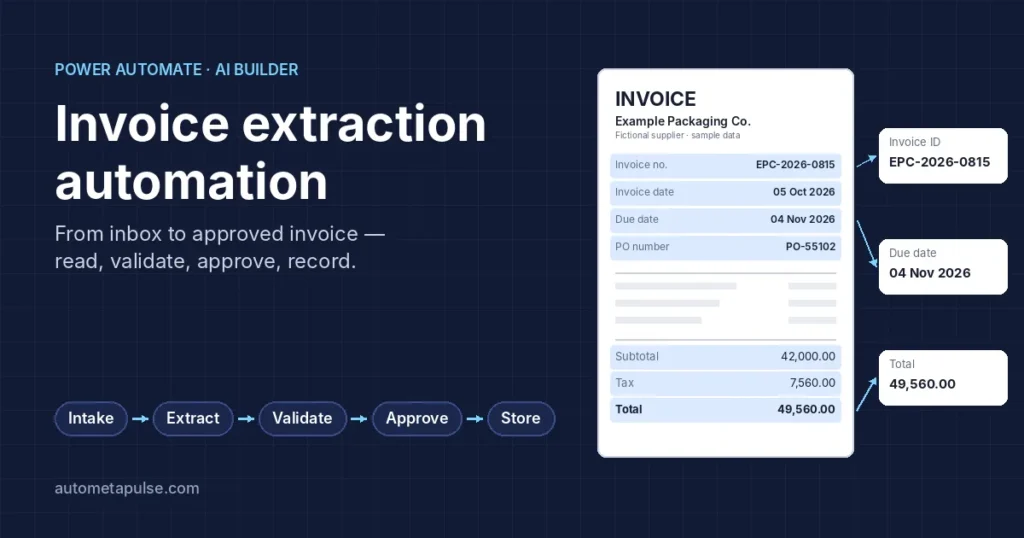
Power Automate invoice processing lets a cloud flow pick up each invoice as it arrives, read its key fields with AI Builder, check them against your rules, and route it for approval — so your team reviews exceptions instead of typing every number. This guide explains how that works, what it costs under Microsoft’s 2026 licensing, where it falls short, and how to plan a project that finance and IT can both sign off.
It is written for two readers: decision-makers who need to know whether invoice extraction automation is worth it, and technical readers who need to know how to build it properly.
In this guide
- Why manual invoice processing is a business problem
- What invoice extraction automation is
- How Power Automate and AI Builder fit together
- The end-to-end architecture
- Step-by-step implementation
- Validation, duplicates, approvals and audit trails
- Storage, security and governance
- Costs, benefits and limitations
- BRD, FRD and an illustrative case study
- FAQs
Why manual invoice processing is a business problem
In many accounts payable teams, invoices still arrive as PDF attachments, get opened one by one, and are retyped into a spreadsheet or ERP. Approvals then travel by email, where they wait in inboxes.
The cost isn’t only the typing. Manual processing creates four recurring problems:
- Time — every invoice needs someone to open, read, type and file it.
- Errors — a transposed digit in an amount or invoice number causes wrong payments or reconciliation work.
- Duplicates — the same invoice sent twice (by email and post, or as a reminder) can be entered twice.
- No visibility — nobody can easily answer “where is invoice 4471, and who is holding it?”
As volume grows, these problems grow with it. Hiring more people scales the cost; automating the routine part scales the capacity.
What is invoice extraction automation?
Invoice extraction automation is the use of software to read an invoice document and turn it into structured data — vendor, invoice number, dates, tax and totals — without a person retyping it. The software then passes that data into a workflow that validates, approves and records it.
It combines two capabilities:
- OCR (optical character recognition) turns the image or PDF into machine-readable text.
- An AI extraction model understands which text is the invoice number, which is the due date, and which is the total — even when every vendor uses a different layout.
The workflow around the model is what makes it a business process rather than a demo: rules, approvals, exception handling and an audit trail.
Common challenges in manual invoice processing
| Challenge | What it looks like day to day | What automation changes |
|---|---|---|
| Varied layouts | Every vendor’s invoice looks different | A prebuilt model reads common fields across layouts |
| Scanned or photographed invoices | Hard to copy text from | OCR reads the text first |
| Email-based approvals | Approvals get lost or delayed | Tracked approval requests with reminders |
| Duplicate submissions | Same invoice paid twice | A rule checks vendor + invoice number before saving |
| Missing data | No PO number, wrong tax amount | Validation rules flag it before approval |
| No audit trail | “Who approved this?” | Every step logged with time and person |
What is Microsoft Power Automate, and how does it help?
Microsoft Power Automate is Microsoft’s workflow automation service. A cloud flow starts from a trigger (an email arrives, a file is uploaded) and runs a series of actions across Microsoft 365 and hundreds of other services through connectors.
For invoices, Power Automate is the orchestrator. It doesn’t read invoices by itself — it calls AI Builder for that — but it handles everything around the extraction: collecting the file, applying business rules, sending approvals, writing data to SharePoint, Dataverse or an ERP, and notifying people.
For organizations already on Microsoft 365, the advantage is that Outlook, SharePoint, Teams and the approvals experience are already in daily use.
Technologies used in invoice extraction
| Component | Role in the solution | Notes |
|---|---|---|
| AI Builder invoice processing (prebuilt model) | Extracts invoice fields with a confidence score for each | Called via the Extract information from invoices action (Microsoft Learn) |
| OCR | Converts image/PDF to text | Built into the model; raw text is also returned as “detected text” |
| Cloud flows | Orchestrate the process | Trigger → actions → conditions |
| Office 365 Outlook connector | Intake from a mailbox | e.g. “When a new email arrives (V3)” trigger |
| SharePoint / OneDrive | Intake folder, document archive, invoice register list | Common, low-cost storage for mid-size teams |
| Approvals connector | Approval requests in Outlook, Teams or the Power Automate action center | A standard connector (Microsoft Learn) |
| Dataverse | Structured, secured data store for larger volumes | Useful when you need relationships, security roles and reporting |
| Microsoft Teams | Notifications and exception alerts | Optional |
| ERP integration | Final destination for approved invoices | Via an existing connector, the ERP’s API, or a file import |
What the AI Builder invoice model can read
According to Microsoft’s documentation (updated January 2026), the prebuilt model:
- Accepts JPEG, PNG and PDF files up to 20 MB.
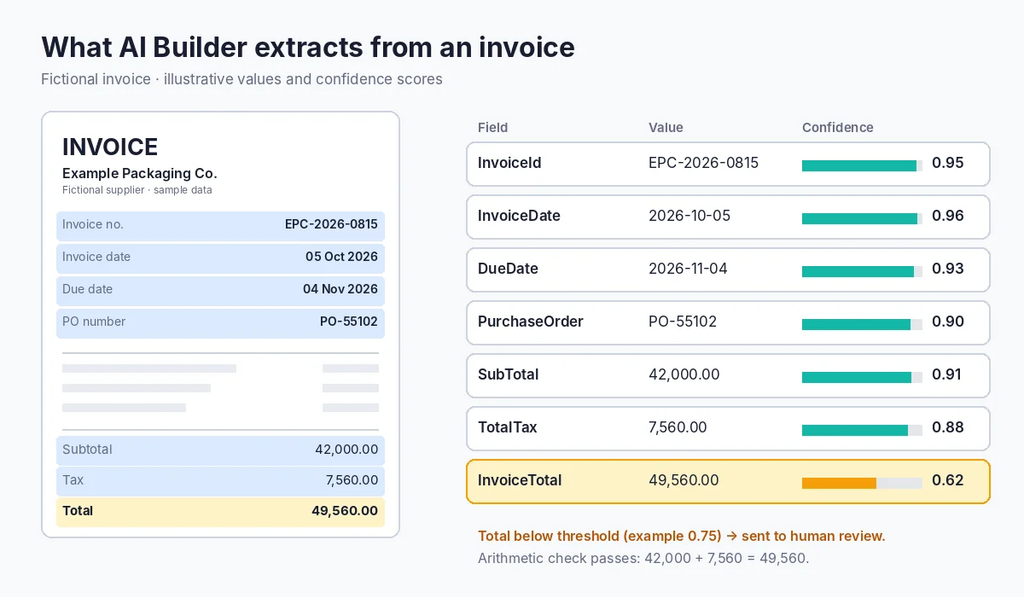
- Extracts header fields such as InvoiceId, InvoiceDate, DueDate, VendorName, VendorAddress, CustomerName, PurchaseOrder, SubTotal, TotalTax, InvoiceTotal, AmountDue, VendorTaxId and PaymentTerm, plus line items (description, quantity, unit price, amount, tax).
- Returns a confidence score from 0 to 1 for every field.
- Supports many languages and regions, including English (India), English (US), English (UK) and most European languages.
- Can be extended with a custom Invoices model when you need extra fields or better results on specific vendors.
For Indian businesses, VendorTaxId and the tax detail fields are where a GSTIN and tax breakdown typically land — but test this on your own vendors’ invoices before relying on it.
End-to-end invoice automation architecture

  Outlook mailbox ──┐
                    ├──► Cloud flow trigger
  SharePoint folder ┘          │
                               ▼
                    Get file content
                               │
                               ▼
               AI Builder: Extract information
                       from invoices
                               │
                               ▼
                Validate fields + confidence ──► fails ──► Human review queue
                               │ passes                          │ corrected
                               ▼                                 │
                     Duplicate check ◄───────────────────────────┘
                               │ new
                               ▼
                 Approval needed? ── yes ──► Approvals (Outlook / Teams)
                               │ no                      │ approved
                               ▼                         ▼
                 Save to SharePoint / Dataverse / ERP
                               │
                               ▼
               Archive original + write audit log
| Stage | Purpose | Expected output |
|---|---|---|
| 1. Intake | Receive invoice by email or upload | File in the flow |
| 2. Trigger | Start one flow run per invoice | Flow run ID |
| 3. Retrieve | Get the file content | File bytes + metadata |
| 4. Extract | Read fields with AI Builder | Field values + confidence scores |
| 5. Validate | Check mandatory fields, amounts, dates, vendor | Pass / fail with reasons |
| 6. Human review | Fix low-confidence or missing data | Corrected record |
| 7. Duplicate check | Stop repeat invoices | New / duplicate flag |
| 8. Approval | Get sign-off where rules require | Approved / rejected + comments |
| 9. Store | Save structured data | Invoice record |
| 10. Retain | Keep original, status, errors, audit detail | Archived file + log entry |
| 11. Exceptions | Log and route failures | Exception ticket / alert |
What is native, what needs AI Builder, and what needs configuration
| Step | Native Power Automate | AI Builder or other connector | Custom configuration or development |
|---|---|---|---|
| Email / SharePoint trigger | ✓ (Outlook, SharePoint connectors) | Filter rules, mailbox choice | |
| Retrieve file | ✓ | ||
| Field extraction | ✓ AI Builder (consumes credits) | Custom model only if needed | |
| Validation rules | ✓ conditions and expressions | Your business rules | |
| Confidence threshold routing | ✓ conditions | Threshold values per field | |
| Human review | ✓ approvals or a task list | Optional Power Apps form | Review screen design |
| Duplicate detection | ✓ query actions | Duplicate rule and register | |
| Approval routing | ✓ Approvals connector | Approval matrix | |
| Store in SharePoint / Excel | ✓ | List / table design | |
| Store in Dataverse | Dataverse connector | Table design, security roles | |
| Store in ERP | ERP connector or API | Mapping, error handling — often the largest piece of custom work | |
| Audit log and exceptions | ✓ | Log design, retry policy |
Step-by-step: invoice data extraction using Power Automate
This outline assumes SharePoint as the register. Adjust names to your environment.
Step 1 — Set up intake
Email intake: create a dedicated mailbox (e.g. invoices@yourcompany). Use the Office 365 Outlook trigger When a new email arrives (V3) with Only with Attachments and Include Attachments set to Yes. For a shared mailbox, use the shared-mailbox version of the trigger.
SharePoint / OneDrive intake: create an “Incoming invoices” library and trigger the flow when a new file is created there. This suits invoices uploaded by staff or by a scanner.
Practitioners report that with Microsoft Defender Safe Attachments, an email trigger can fire twice, the first time without attachments; a condition that checks the attachment count is greater than zero avoids processing empty runs (community note).
Step 2 — Loop through attachments and filter file types
Use Apply to each over the attachments. Skip anything that isn’t PDF, JPEG or PNG, and anything over 20 MB — the model won’t accept them. Send skipped files to the exception queue rather than ignoring them silently.
Step 3 — Extract invoice fields
Add the AI Builder action Extract information from invoices and pass the file content. For a long PDF that contains one invoice, set the Pages parameter to the invoice’s pages — Microsoft notes this reduces cost and improves performance.
Step 4 — Extract the fields that matter

Map at minimum: invoice number, vendor name, invoice date, due date, subtotal, total tax, invoice total, PO number and their confidence scores. Use the “(number)” and “(date)” outputs for amounts and dates — they come back in a standardized format, which makes comparisons reliable.
Step 5 — Validate fields and handle low confidence
Check each mandatory field for:
- Presence — not empty.
- Confidence — at or above your threshold. Microsoft’s own example routes totals below 0.65 to a fallback; treat that as a starting point, then tune it from your pilot data.
- Arithmetic — subtotal + tax ≈ total, within a small tolerance for rounding.
- Dates — invoice date not in the future; due date on or after invoice date.
- Vendor — name matches your approved vendor list (exact or normalized match).
Anything that fails goes to human review with the reason attached. Reviewers correct the values; the flow resumes.
Step 6 — Check for duplicates
Before saving, query your invoice register for the same vendor + invoice number. A stricter rule adds the invoice total and date. If a match exists, stop, mark the run as a duplicate, and notify AP. This is a business rule you define — the model doesn’t do it for you.
Step 7 — Route for approval
Use Start and wait for an approval from the Approvals connector. Approvers can respond from Outlook, a Teams card, or the Power Automate action center. Build an approval matrix (e.g. by amount band, department or cost centre) and support sequential approval for high-value invoices.
Long approvals need care: a flow run that waits for an approval is subject to Power Automate’s run-duration limits, so set a timeout with a reminder and escalation path.
Step 8 — Save the data
Write the approved record to its destination:
- SharePoint list — simplest for small and mid-size teams.
- Excel — fine for a pilot, weak for concurrency and control.
- Dataverse — best when you need security roles, relationships and reporting at scale.
- ERP — the real destination for most finance teams, through an existing connector, the ERP’s API, or a scheduled file import.
Step 9 — Archive and log
Move the original file to an archive library named consistently (e.g. Vendor_InvoiceNumber_Date.pdf), and write an audit entry: flow run ID, timestamps, extracted values, confidence scores, reviewer changes, approver, decision and errors. Keep these according to your retention policy.
Approval workflows, exception handling, duplicate detection and audit trails
These controls are what make the workflow trustworthy to finance.
- Approvals — every decision is recorded with approver, time and comments.
- Exception handling — wrap the main steps in a Scope and add a second scope configured to run if the first fails. Log the error, alert AP, and never let an invoice disappear silently.
- Retries — for temporary failures (a connector timeout), use the action’s retry policy; for data problems, route to a person.
- Duplicates — checked before the approval request is sent, so approvers never see the same invoice twice.
- Audit trail — one record per invoice that shows its full journey.
Saving structured invoice data to SharePoint, Dataverse, Excel or an ERP
| Destination | Best for | Watch out for |
|---|---|---|
| SharePoint list | Up to moderate volumes, Microsoft 365-centric teams | List view thresholds, permission design |
| Excel | Pilots and proofs of concept | File locking, no real access control per row |
| Dataverse | Larger volumes, reporting, model-driven apps | Licensing and table design |
| ERP | Production AP processing | Mapping, master data, error handling |
Security, permissions, governance and compliance
Invoices contain bank details and tax IDs, so treat the solution like any finance system:
- Least privilege — run flows under a dedicated service account; limit who can edit the flow and who can read the register.
- Environments — build in development, test in a test environment, run in production.
- Data loss prevention (DLP) policies — set in the Power Platform admin center to control which connectors can share data.
- Segregation of duties — the person who corrects extracted data should not be the only approver.
- Bank detail changes — never update vendor bank details from an invoice automatically; that’s a classic fraud route.
- Retention — keep originals and logs for the period your auditors and local regulations require.
Benefits, limitations, costs and implementation considerations
Benefits
- Less manual data entry and fewer keying errors.
- Faster, trackable approvals.
- Duplicate invoices caught before payment.
- A complete audit trail.
- Staff time moves from typing to resolving real exceptions.
Limitations
- Accuracy varies with document quality, layout and language — poor scans and handwritten notes cause low confidence.
- Human review stays. A well-designed process reduces it; it doesn’t remove it.
- Throughput limits — Microsoft lists 360 document-processing calls per 60 seconds per environment.
- ERP integration is often the most complex and time-consuming part.
Costs in 2026 — what changed
AI Builder actions consume credits. Microsoft is ending AI Builder credits and moving to Copilot Credits (Microsoft Learn):
- Since 1 November 2025, AI Builder features in Power Automate can draw on Copilot Credits.
- From 1 November 2026, premium licenses no longer bring new seeded AI Builder credits; existing seeded credits are honored to the end of the contract term.
- If neither AI Builder credits nor Copilot Credits are available, AI Builder actions are blocked — so plan capacity before go-live.
Other cost drivers: Power Automate licences, Dataverse (if used), ERP connector or API work, implementation effort, testing, and ongoing support. Check current pricing with Microsoft or your licensing partner — it changes.
Business Requirements Document (BRD) — summary
A BRD states what the business needs before anyone builds. For invoice automation, the core requirements usually are:
| ID | Requirement |
|---|---|
| BR-001 | Capture invoices from one mailbox and one upload location |
| BR-002 | Extract key invoice fields without manual typing |
| BR-003 | Send uncertain or incomplete data for human review |
| BR-004 | Prevent duplicate invoices from being recorded |
| BR-005 | Route invoices for approval by an agreed matrix |
| BR-006 | Keep a full audit trail per invoice |
| BR-007 | Report on volumes, exceptions and approval time |
These are illustrative — every requirement must be confirmed with your stakeholders. A full BRD template is available in our resources library.
Functional Requirements Document (FRD) — summary
The FRD turns each business need into testable system behavior. Examples:
- FR-005: If any mandatory field’s confidence is below the agreed threshold, create a review task and pause the record. Acceptance: a test invoice with an unreadable total lands in the review queue with the reason “Total below threshold”.
- FR-008: Before saving, search the register for the same vendor + invoice number. Acceptance: submitting the same invoice twice creates one record and one duplicate alert.
- FR-010: Invoices above the approval limit go to the finance manager via Outlook or Teams. Acceptance: approval request received; decision and comments stored on the record.
Illustrative case study: a mid-sized distribution company
This is an illustrative case study based on a hypothetical business scenario. It is not a completed client project, and the figures are assumptions, not results.
A distribution company receives about 2,000 supplier invoices a month by email. Two AP staff type each invoice into a spreadsheet and forward PDFs to managers for approval.
The proposed solution: an Outlook-triggered cloud flow, the AI Builder prebuilt invoice model, validation and confidence rules, a SharePoint review queue, a vendor + invoice number duplicate check, and approvals by amount band.
Illustrative time calculation:
- Before: 2,000 invoices × 6 minutes = 12,000 minutes = 200 hours/month of human handling.
- After: 2,000 invoices × 2 minutes average (review, exceptions, spot checks) = 4,000 minutes = about 66.7 hours/month.
- Potential reduction: about 133.3 hours/month of human handling time.
These assumptions are illustrative. Real results depend on document quality, validation rules, exception rates, licensing, integrations and the business process.
Frequently asked questions
Can Power Automate extract data from PDF invoices? Yes. The AI Builder Extract information from invoices action reads PDF, JPEG and PNG files up to 20 MB and returns the invoice fields with confidence scores.
Can invoice processing be automated without manual data entry? Mostly. Clean invoices can flow straight through, but you should keep human review for low-confidence fields, missing data and exceptions.
How does AI Builder extract invoice data? It runs OCR to read the text, then a prebuilt AI model identifies fields like invoice number, dates, vendor, tax and totals, giving each a confidence score between 0 and 1.
Can Power Automate send invoices for approval? Yes. The Approvals connector sends requests that approvers can answer in Outlook, Teams or the Power Automate action center, and the decision is recorded.
How can duplicate invoices be detected? By checking the register for the same vendor and invoice number (optionally amount and date) before saving. You define and configure this rule.
Can extracted data be saved to SharePoint or an ERP system? Yes — SharePoint, Excel and Dataverse are straightforward; ERP systems connect through a connector, an API or a file import, depending on the ERP.
What happens when invoice data is extracted incorrectly? Validation rules and confidence thresholds catch most issues and send them to a reviewer. Arithmetic checks (subtotal + tax = total) catch errors confidence scores miss.
Is human review still necessary? Yes. The aim is to review exceptions, not every invoice. How many need review depends on your invoices and thresholds.
What factors affect implementation cost? Invoice volume, number of intake channels, approval complexity, ERP integration, AI Builder/Copilot Credit consumption, licences and the level of testing and support.
How secure is an automated invoice processing workflow? It can be as secure as your Microsoft 365 setup: least-privilege access, separate environments, DLP policies, audit logs and a strict rule never to change bank details automatically.
Conclusion: start with one mailbox and a clear brief
Invoice extraction automation works best when it’s treated as a finance process, not just an AI feature. The extraction model reads the invoice; validation, duplicate checks, approvals and an audit trail make the result trustworthy.
A sensible first step is a workflow assessment: map your current invoice journey, sample real invoices, and test extraction on them before committing to a full build.
At Autometapulse, we help teams plan and build this end to end — process discovery, BRD and FRD, Power Automate and AI Builder build, approval and exception design, SharePoint, Dataverse or ERP integration, testing, documentation and support.
Discuss your invoice workflow → Tell us your monthly volume, where invoices arrive and where the data needs to end up, and we’ll suggest a sensible proof of concept.