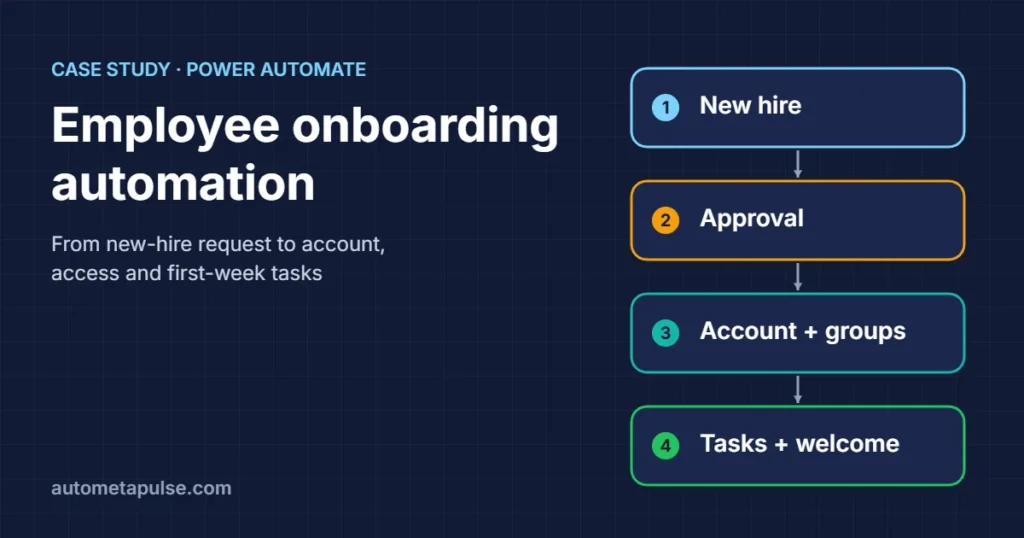
Employee onboarding automation with Power Automate means turning a new-hire request into one tracked workflow: approval, account creation, group access, manager tasks and a welcome message, without anyone copying details between emails and spreadsheets. In this illustrative case study we walk through how a hypothetical business could design that flow, which Microsoft connectors do each job, and where people should stay in the loop.
In this guide
- The scenario: a hypothetical onboarding problem
- The target process, step by step
- Which connectors do what
- Building the flow
- Results to measure (illustrative)
- Lessons and common pitfalls
- Frequently asked questions
Note: This is an illustrative case study based on a hypothetical business scenario. The company, people and numbers are invented to explain the design. They are not results from a real client.
The scenario: a hypothetical onboarding problem
Imagine a 150-person professional services firm that hires two to four people a month. Its onboarding “process” lives in people’s heads:
- The hiring manager emails HR that someone has accepted an offer.
- HR forwards the details to IT, usually with the start date and job title, sometimes without the department.
- IT creates the Microsoft 365 account by hand, guesses at the right groups, and replies with a password.
- Nobody owns the first-week checklist, so laptop orders, building access and training invites depend on who remembers.
The symptoms are familiar. New starters arrive to find no account or the wrong access. Managers chase IT. HR has no single view of who is starting when. And because every hire is handled slightly differently, access reviews later on are harder than they should be.
The firm already uses Microsoft 365, SharePoint, Teams and Planner, so it decides to build the onboarding workflow in Power Automate rather than buy a separate tool.
The target process, step by step
Before building anything, the team agrees on one written version of the process. This is the most valuable hour in the whole project, because automation copies whatever process you give it, including the gaps.
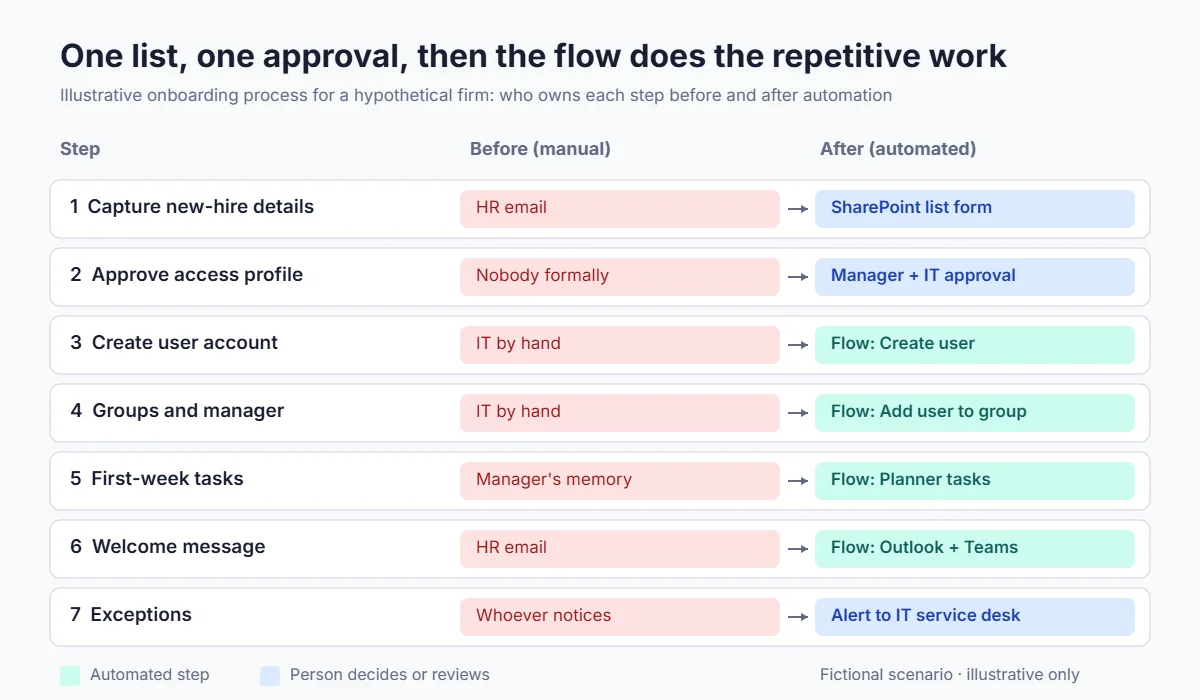
| Step | Owner today | Owner after automation | Trigger |
|---|---|---|---|
| 1. Capture new-hire details | HR (email) | HR (SharePoint list form) | Offer accepted |
| 2. Approve access profile | Nobody formally | Hiring manager + IT (approval) | New list item |
| 3. Create user account | IT (manual) | Flow (Microsoft Entra ID connector) | Approval granted |
| 4. Add to groups and set manager | IT (manual) | Flow | Account created |
| 5. Create first-week tasks | Manager (memory) | Flow (Planner) | Account created |
| 6. Welcome message and day-one info | HR (manual email) | Flow (Outlook + Teams) | Before start date |
| 7. Exceptions and edge cases | Whoever notices | IT service desk (alert) | Any failed step |
Two design decisions shape everything else:
- One source of truth. Every hire starts as a row in a SharePoint list called New Hires. The flow reads from it and writes status back to it, so HR always knows where each hire stands.
- Role-based access profiles. Instead of IT choosing groups case by case, each job role maps to a short list of groups. The approval step confirms the profile; it does not invent one.
Which connectors do what
All of the connectors below are listed as Standard (not Premium) in Microsoft’s connector reference at the time of writing. Always check the current tier and your own licence before you build, because tiers and plans change.
| Job in the workflow | Connector | Action used |
|---|---|---|
| Start when HR adds a new hire | SharePoint | When an item is created |
| Get approval for the access profile | Approvals | Start and wait for an approval |
| Create the Microsoft 365 / Entra account | Microsoft Entra ID | Create user |
| Add to role groups | Microsoft Entra ID | Add user to group |
| Set the manager | Microsoft Entra ID | Assign manager |
| Look up the manager’s details | Office 365 Users | Get manager (V2) |
| Create the first-week checklist | Planner | Create a task |
| Welcome the new hire’s manager and team | Office 365 Outlook / Microsoft Teams | Send an email (V2) / Post message in a chat or channel |
A few verified details matter for the design:
- The Microsoft Entra ID connector needs an account with directory permissions (Microsoft lists Group.ReadWrite.All, User.ReadWrite.All and Directory.ReadWrite.All). Run it under a dedicated service account owned by IT, not under an HR user’s personal connection.
- The same connector page notes limitations: it does not support mail-enabled security groups or role-assignable groups, and Conditional Access policies such as MFA can interrupt the connection. Plan your groups and the service account’s sign-in policy with that in mind.
- The Entra ID connector has no “assign licence” action. A common pattern is group-based licensing: an administrator assigns licences to a group in the Microsoft 365 admin center, and the flow simply adds the new user to that group.
- The Planner connector currently supports basic plans only, so keep the onboarding checklist in a basic plan.
Building the flow
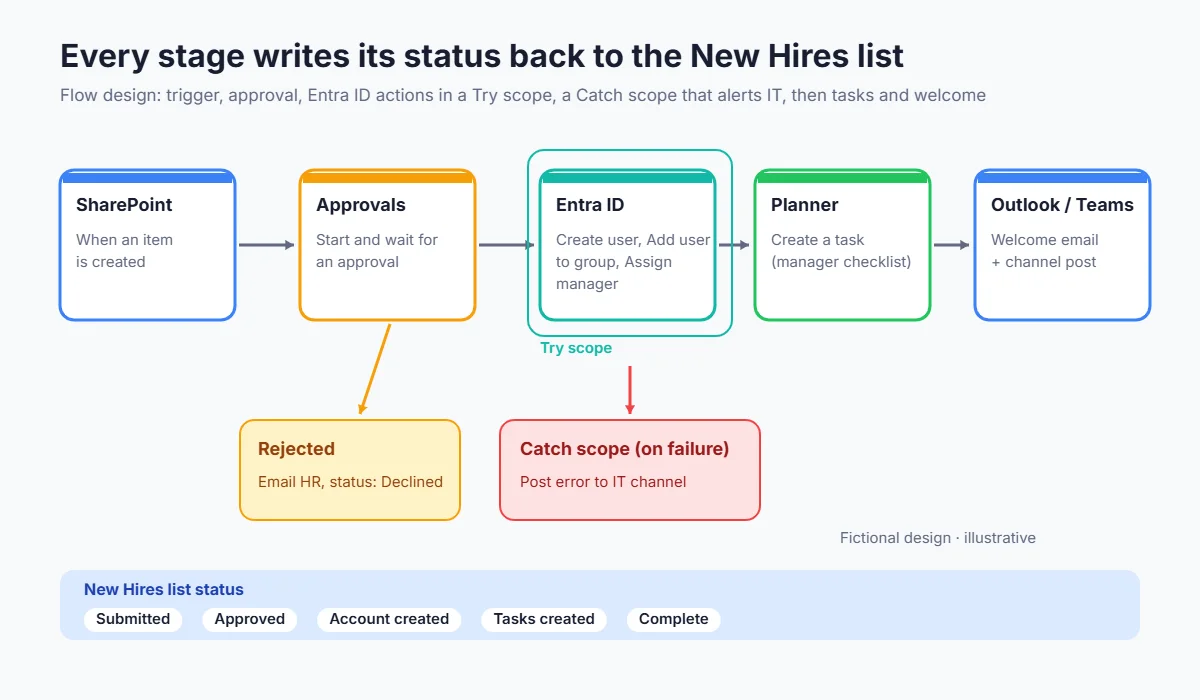
Here is how the hypothetical firm structures the cloud flow. Names in quotes are the actual action names in Power Automate.
1. Trigger and data checks
The flow starts with “When an item is created” on the New Hires list. The first scope validates the data: start date in the future, manager email present, job role chosen from the approved list. If anything is missing, the flow updates the item status to Needs info, emails HR, and stops. Bad data caught here saves a messy clean-up later.
2. Approval of the access profile
Next comes “Start and wait for an approval” with the type Approve/Reject – Everyone must approve, sent to the hiring manager and an IT approver. The approval card shows the name, role, start date and the groups that role maps to. If you want the steps to happen in order instead, Microsoft also lists a Sequential approval type. Our Power Automate approval workflow guide covers the choice in more detail.
One limit to design around: Power Automate’s limits page says a run can last up to 30 days, including pending approvals, and pending steps time out after that. Hires are usually approved within days, but add a reminder and an escalation path rather than letting a run sit quietly for weeks.
3. Account creation and access
Once approved, the flow runs “Create user” with the display name, user principal name, mail nickname, a generated initial password, and Account enabled set according to your policy. Many teams keep the account disabled until shortly before the start date. It then loops over the role’s groups with “Add user to group” and calls “Assign manager”.
Wrap these actions in a Try scope with a Catch scope configured to run after failure. If a group add fails, the catch scope posts the error to the IT channel and sets the list status to Needs attention. Do not silently continue.
4. Manager tasks and welcome
The flow creates a short Planner checklist for the manager: confirm equipment, book a first-week check-in, add the starter to recurring team meetings, and schedule required training. It then emails the manager a summary and posts a welcome message in the team’s channel on the start date.
Never send the initial password in the same email as the username, and never to a personal inbox. Follow your organisation’s credential policy; many teams use a Temporary Access Pass issued by IT or by the identity platform instead.
5. Status back to the list
Every stage writes back to the SharePoint item: Approved, Account created, Tasks created, Complete. HR now has a live tracker for every starter, and IT has a record of what was granted and when.
Should you use Entra Lifecycle Workflows instead?
Microsoft also offers Lifecycle Workflows in Microsoft Entra ID Governance. They run on the employee’s hire date (for example a set number of days before employeeHireDate) and include built-in tasks such as “Send welcome email to new hire”, “Generate Temporary Access Pass and send via email to user’s manager”, “Add user to groups” and “Assign licenses to user”. They require Microsoft Entra ID Governance or Microsoft Entra Suite licences.
A practical split many organisations consider:
- Lifecycle Workflows for identity tasks driven by HR data, if you already have the licence and a reliable HR source populating Entra attributes.
- Power Automate for the human side: approvals, checklists, Teams messages, equipment requests and anything outside the directory.
The hypothetical firm in this case study does not have Entra ID Governance, so it keeps everything in Power Automate and revisits the choice later.
Results to measure (illustrative)
Because this scenario is hypothetical, we will not claim results. Instead, here is the measurement plan the firm would set up before go-live, with illustrative before/after targets to show the shape of a business case.
| Metric | How to measure | Illustrative baseline | Illustrative target |
|---|---|---|---|
| Time from offer accepted to account ready | List created date to Account created status | 3–5 working days | Under 1 working day after approval |
| Starters missing access on day one | Day-one check-in question | 1 in 3 | Fewer than 1 in 10 |
| IT hands-on time per hire | Service desk time logging | ~90 minutes | ~20 minutes for exceptions only |
| Hires with a complete audit trail | List items with all statuses filled | Unknown | 100% |
Measure the baseline for a month before switching on the flow. Without a baseline, any “after” number is just a guess. For a wider approach to the numbers, see our case studies section.
Lessons and common pitfalls
These are the points that most often decide whether an onboarding flow helps or creates new work:
- Fix the process before automating it. Agree on the steps, owners and role profiles first.
- Keep humans where judgement matters. The access approval is a decision; account creation is not. Our post on human-in-the-loop automation explains how to choose review points.
- Use a service account and document it. Personal connections break when people leave, which is an awkward failure for an onboarding flow.
- Handle failures loudly. Every scope that can fail should alert someone and update the status.
- Design for changes. Rescinded offers, changed start dates and role changes need their own path. A simple Cancelled status that triggers a clean-up flow (run by IT, reviewed by a person) is enough to start.
- Plan offboarding too. The same list and role profiles make leaver processing far easier later.
Frequently asked questions
Can Power Automate create Microsoft 365 user accounts?
Yes. The Microsoft Entra ID connector includes a “Create user” action. The connection needs an account with directory permissions such as User.ReadWrite.All, so it is normally run by an IT-owned service account.
Is the Microsoft Entra ID connector premium?
Microsoft’s connector reference lists it as Standard in Power Automate at the time of writing. Check the current reference and your licence before building, as tiers can change.
How do I assign licences to new users in the flow?
The Entra ID connector has no licence action. A common approach is group-based licensing: assign licences to a group in the Microsoft 365 admin center and have the flow add the new user to that group.
What happens if an approval is never answered?
A cloud flow run can last up to 30 days, including pending approvals, and pending steps time out after that. Add reminders and an escalation path so approvals are handled within days.
Should I use Entra Lifecycle Workflows or Power Automate for onboarding?
Lifecycle Workflows suit identity tasks driven by HR attributes and need Microsoft Entra ID Governance or Entra Suite licences. Power Automate suits approvals, checklists and messages. Many organisations use both.
How do I send the new hire their password safely?
Follow your security policy. Avoid sending credentials by email with the username. A Temporary Access Pass issued by IT or by the identity platform is a common alternative.
Can the flow handle cancelled offers or changed start dates?
Yes, if you design for it. Add statuses such as Cancelled or Date changed to the list and handle each with its own branch or flow, with a person reviewing any account changes.
Conclusion: start with one clear onboarding process
Employee onboarding automation with Power Automate works best when it is boring: one list, one approval, role-based access and clear alerts when something fails. The connectors to do this are widely available; the real work is agreeing on the process and ownership. Start with the account and access steps, measure your baseline, then add tasks and welcome messages once the core is reliable.
If you would like help mapping your onboarding process or reviewing a flow you have already built, our automation services team can help.
Discuss your automation workflow →