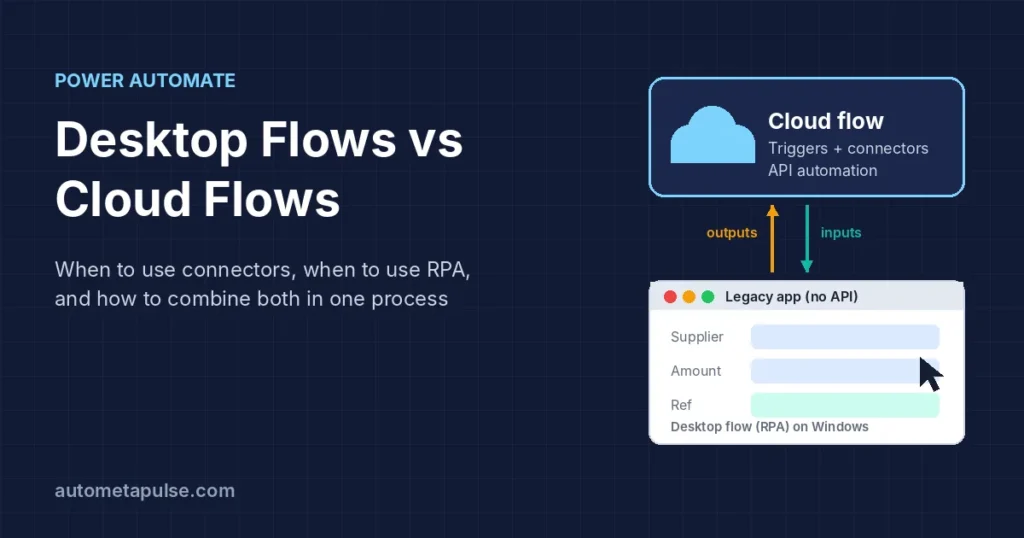
Power Automate desktop vs cloud flows comes down to how your systems can be reached. Use a cloud flow when the apps you need have connectors or APIs, and use a desktop flow (robotic process automation, or RPA) when the only way in is the screen of a Windows desktop or web app. Many real processes need both: a cloud flow that handles triggers, approvals and data, and a desktop flow that does the clicking in a legacy app.
In this guide
- Cloud flows and desktop flows in one minute
- Side-by-side comparison
- When to choose a cloud flow
- When to choose a desktop flow
- Attended vs unattended desktop flows
- Combining both: run a desktop flow from a cloud flow
- Licensing basics in 2026
- Decision checklist
- Frequently asked questions
Product details below were checked on Microsoft Learn and the Power Automate pricing page on 27 October 2026. New to cloud flows? Start with our Power Automate guides.
Cloud flows and desktop flows in one minute
Microsoft’s overview of flow types puts it simply: create a cloud flow “when you want your automation to be triggered either automatically, instantly, or via a schedule,” and use desktop flows to “automate tasks on the web or the desktop.”
Cloud flows run in Microsoft’s cloud. They start from a trigger (a new email, a file added to SharePoint, a button press, a schedule) and call services through connectors. No computer of yours needs to be switched on. This is API-based automation: the flow talks to the service directly, not through its user interface.
Desktop flows are built in Power Automate for desktop and run on a Windows machine. Microsoft’s desktop flows introduction describes them as broadening Power Automate’s RPA capabilities so you can automate repetitive desktop processes, including legacy applications such as terminal emulators, modern web and desktop apps, and Excel files and folders. A desktop flow interacts with the screen through UI elements, images or coordinates, much as a person would.
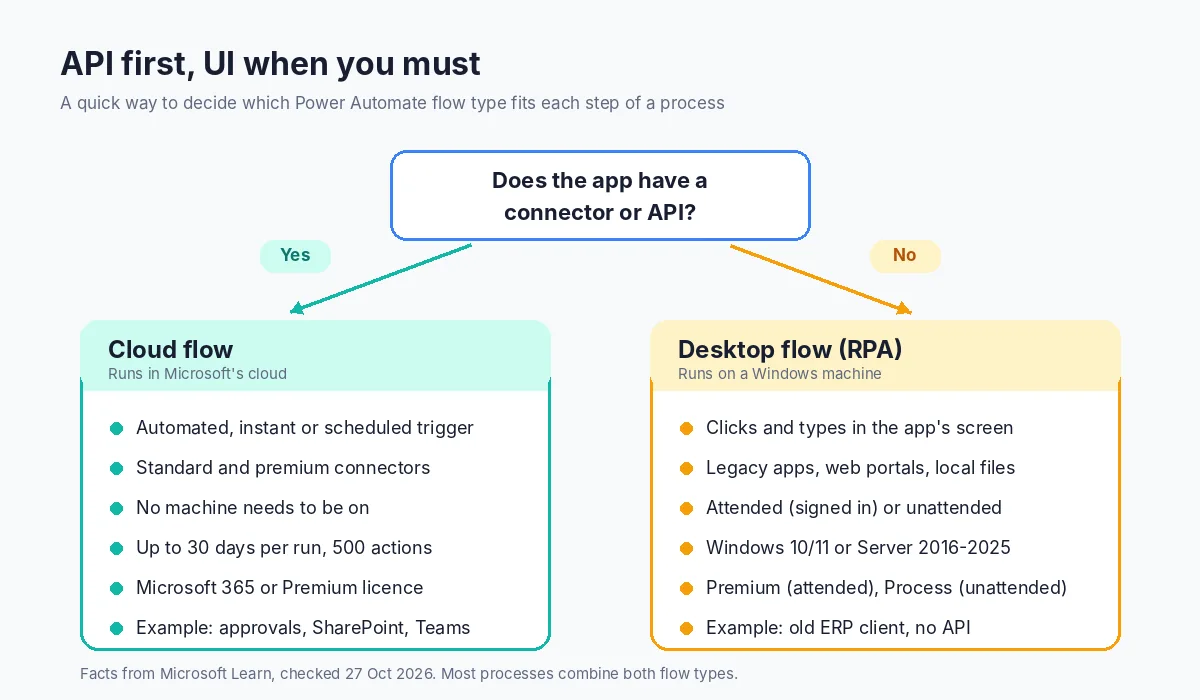
The rule of thumb: API first, UI when you must. Connectors are usually faster and less fragile than screen automation, because a button that moves in an app update does not break an API call.
Side-by-side comparison
| Cloud flow | Desktop flow (RPA) | |
|---|---|---|
| Where it runs | Microsoft cloud | A Windows machine you register (or a Microsoft-hosted machine) |
| How it reaches apps | Connectors and APIs | The app’s user interface: UI elements, images, keyboard and mouse |
| How it starts | Automated, instant or scheduled trigger | Manually in Power Automate for desktop, or from a cloud flow (direct scheduling is in public preview) |
| Best for | SaaS apps, Microsoft 365, approvals, notifications, data movement | Legacy or desktop apps without APIs, web portals, file and Excel work on a PC |
| Machine needed | No | Yes, Windows 10/11 or Windows Server 2016–2025 (no ARM) |
| Main licence | Microsoft 365 (standard connectors) or Power Automate Premium | Premium for attended runs, Process or Hosted Process for unattended |
| Typical fragility | Connector or API changes, throttling | Screen or selector changes, pop-ups, sign-in sessions |
Sources: Microsoft Learn pages on desktop flow requirements and premium features.
When to choose a cloud flow
Choose a cloud flow when every system in the process has a connector or an API you can call. Typical examples:
- Save email attachments to SharePoint and notify a Teams channel.
- Route a request for approval, then update a list or Dataverse table with the outcome.
- Copy new rows from a form into Excel and send a confirmation email.
- Call an HTTP endpoint or a custom connector to sync two business systems.
Cloud flows also include retry policies, scopes for try/catch-style error handling and run history. Our Power Automate error handling guide shows how to use scopes and run-after settings.
Limits to keep in mind, from Microsoft’s limits and configuration page:
- A single run can last up to 30 days; pending steps time out after that, and run history is kept for 30 days.
- A flow can hold up to 500 actions.
- Daily Power Platform request limits depend on the licence. The page lists Low (10,000 per 24 hours) for Free and Microsoft 365, Medium (200,000) for Premium and High (500,000) for Process, and describes these as approximations, not guarantees. The licensing FAQ quotes slightly different figures for some plans, so check the current page for your licence.
When to choose a desktop flow
Choose a desktop flow when a step can only be done through a screen. Common cases:
- An on-premises or legacy Windows application with no API (for example, an older ERP client or a terminal emulator).
- A supplier or government web portal where you must sign in, fill forms and download files.
- Desktop work on files: renaming, moving, merging Excel workbooks, reading PDFs on a local drive.
- A process where a connector exists but lacks the one action you need.
Desktop flows have their own practical requirements, listed on Microsoft’s requirements page:
- Windows only. Windows 10 and 11 (Home, Pro, Enterprise) and Windows Server 2016, 2019, 2022 and 2025 are supported; ARM devices are not. On Home editions you can build and monitor desktop flows but can’t trigger them from the cloud.
- Hardware. At least 2 GB of RAM and 2 CPU cores (4 cores for unattended), plus .NET Framework 4.7.2.
- Dataverse. With a work or school account, you need a Dataverse database in the default environment to create desktop flows.
- Logging. At most 10,000 actions are logged per run. Extra actions still run but are not logged.
Microsoft also documents Copilot in Power Automate for desktop (work or school accounts) and a self-healing preview that repairs “element not found” and “window not found” errors at runtime (organization premium account, version 2.66 or later). Treat previews as extras, not a substitute for good selector design.
Attended vs unattended desktop flows
Attended runs happen while a user is signed in to the machine, often with the person watching or working alongside. Use attended runs for tasks a person starts, such as “prepare this customer’s renewal pack.” The cloud flow action also offers a picture-in-picture option so the bot can work in a separate window while the user keeps working.
Unattended runs happen with nobody signed in. According to Microsoft’s unattended desktop flows page, they need the Power Automate Process plan and “an available machine with all users signed out.” Even a locked session blocks an unattended run on Windows 10/11. Power Automate creates a new Windows session for each run, unattended flows can’t run with elevated privileges, and the connection’s user needs Remote Desktop rights.
| Attended | Unattended | |
|---|---|---|
| User signed in? | Yes | No, all users signed out |
| Typical trigger | A person, or a cloud flow while they work | A schedule or event, through a cloud flow |
| Licence | Power Automate Premium | Power Automate Process (per bot) or Hosted Process |
| Good for | Front-office help, tasks needing human judgement | Back-office batches, overnight runs |
To scale, register machines to the environment and group them. Microsoft’s machine management page says direct machine connectivity is the easiest option (gateways for desktop flows are no longer supported), a machine group can hold up to 50 machines, and each unattended bot runs one desktop flow at a time. Hosted machine groups go further: Microsoft provisions Azure virtual machines and scales bots up to a maximum your admin sets.
Combining both: run a desktop flow from a cloud flow
In most processes the answer is “both”: the cloud flow orchestrates and the desktop flow is one step inside it.
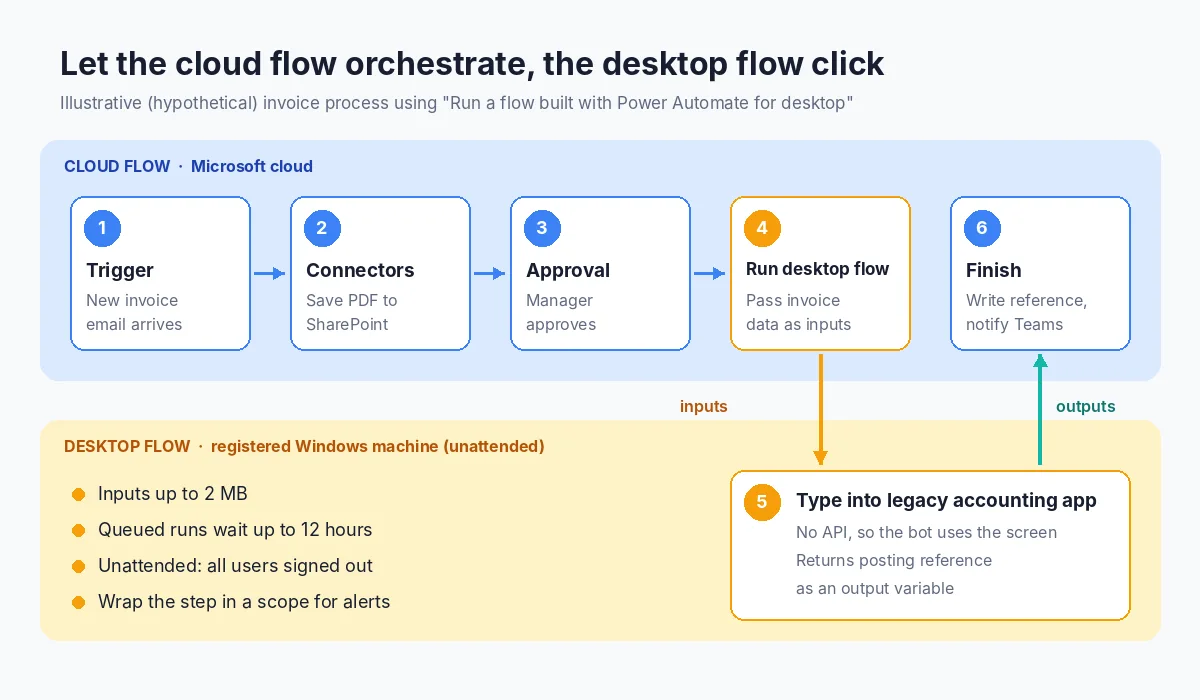
The bridge is the cloud flow action Run a flow built with Power Automate for desktop. Per the desktop flows connector reference and the triggering guide:
- Pick the desktop flow and a run mode: attended (signed in) or unattended (in the background).
- Choose the connection: a machine or machine group, using a username and password, sign-in, or a service principal.
- Pass input variables from the cloud flow (for example, an invoice number). Inputs are limited to 2 MB.
- Read output variables back into the cloud flow (for example, the confirmation number the legacy app returned) and continue: update a list, send a Teams message, or start an approval.
Microsoft’s best-practice page notes that queued desktop flow runs wait up to 12 hours, including when the target device is offline, and that runs expected to last longer than 24 hours need the action’s timeout setting changed. Wrap the action in a scope with error handling so a failed desktop run alerts someone instead of failing silently.
For monitoring, Monitor > Desktop flow activity shows runs, errors and machines, and the Automation center combines cloud and desktop flow run history (solution-based cloud flows only).
Illustrative example (hypothetical): a supplier invoice email triggers a cloud flow that saves the PDF to SharePoint, runs an approval, then calls an unattended desktop flow to key the invoice into an accounting client with no API. The posting reference comes back as an output and is written to the SharePoint item.
Licensing basics in 2026
Check licensing before you build. This summary comes from Microsoft’s licensing types page, the licensing FAQ and the Power Automate pricing page (US list prices, paid yearly, viewed 27 October 2026; Microsoft labels these “for marketing purposes only,” and your price may differ by region and agreement).
| Option | What it covers | Listed price |
|---|---|---|
| Microsoft 365 / Office 365 | Automated, scheduled and button cloud flows with standard connectors; no attended or unattended RPA | Included with qualifying plans |
| Power Automate for desktop on Windows | Build and run desktop flows yourself for personal productivity (attended, manual); no cloud triggering, sharing or unattended runs | No separate charge listed |
| Power Automate Premium | Cloud flows with premium and custom connectors, attended desktop flows, centralised monitoring and sharing | $15.00 per user/month |
| Power Automate Process | One unattended bot (one machine) or a licensed cloud flow | $150.00 per bot/month |
| Power Automate Hosted Process | Process plus a Microsoft-hosted virtual machine | $215.00 per bot/month |
| Pay-as-you-go (preview meters) | Per-run billing through an Azure subscription | $0.60 per premium cloud or attended run; $3.00 per unattended or hosted run |
A few rules from the FAQ that matter in practice: one Process licence covers one machine, so add licences for concurrent unattended runs; Process licences can’t be used in a pay-as-you-go environment; and the Premium licence covers “all RPA premium features, except unattended RPA and hosted RPA.”
Decision checklist
Work through these questions for each step of the process:
- Does every app have a connector or API? If yes, use a cloud flow.
- Is one step screen-only? Keep the cloud flow as the orchestrator and call a desktop flow for that step.
- Does someone need to be at the keyboard? Attended. If it should run overnight or in bulk, unattended.
- Do you have a Windows machine (or budget for hosted machines) that can stay signed out for unattended runs?
- Which licences do you already own? Microsoft 365 covers standard-connector cloud flows only; Premium adds attended RPA; Process adds unattended bots.
- Who monitors failures? Plan alerts and an owner before go-live.
Frequently asked questions
Is Power Automate Desktop the same as Power Automate?
No. Power Automate is the overall service; Power Automate for desktop is the Windows app for building and running desktop flows (RPA).
Is Power Automate for desktop free?
Microsoft’s licensing FAQ says Windows users can use desktop flows for attended, personal-productivity automation in the default environment without a premium licence. Triggering from cloud flows, sharing, unattended runs and centralised management need paid licences. Microsoft’s pages don’t use the word “free,” so check your edition and account type.
Can a cloud flow run a desktop flow?
Yes, with the “Run a flow built with Power Automate for desktop” action, using a Premium licence for attended runs or a Process licence for unattended runs. The machine must be registered to the same environment.
Do I need a computer switched on for cloud flows?
No. Cloud flows run in Microsoft’s cloud. Desktop flows need a Windows machine, either your own registered machine or a Microsoft-hosted one.
What is the difference between attended and unattended RPA?
Attended runs happen while a user is signed in, often alongside their work. Unattended runs happen with all users signed out, usually on a schedule, and need the Process plan.
Are desktop flows less reliable than cloud flows?
They can be more fragile because screens change. Use connectors where they exist, keep selectors robust and add error handling.
Can I schedule a desktop flow without a cloud flow?
Microsoft’s 2026 wave 1 release plan lists direct scheduling as a public preview from August 2026. Until it is generally available, use a scheduled cloud flow that calls the desktop flow.
Conclusion: start with the API, add RPA where it pays
The Power Automate desktop vs cloud flows choice is not either/or. Use cloud flows for anything a connector can reach, add desktop flows for the screen-only steps, and let the cloud flow orchestrate the whole process with proper error handling and monitoring. Check licences early, especially for unattended runs, and design with change in mind.
Want help mapping which steps of your process belong in a cloud flow and which need a bot? Explore our automation services or get in touch.