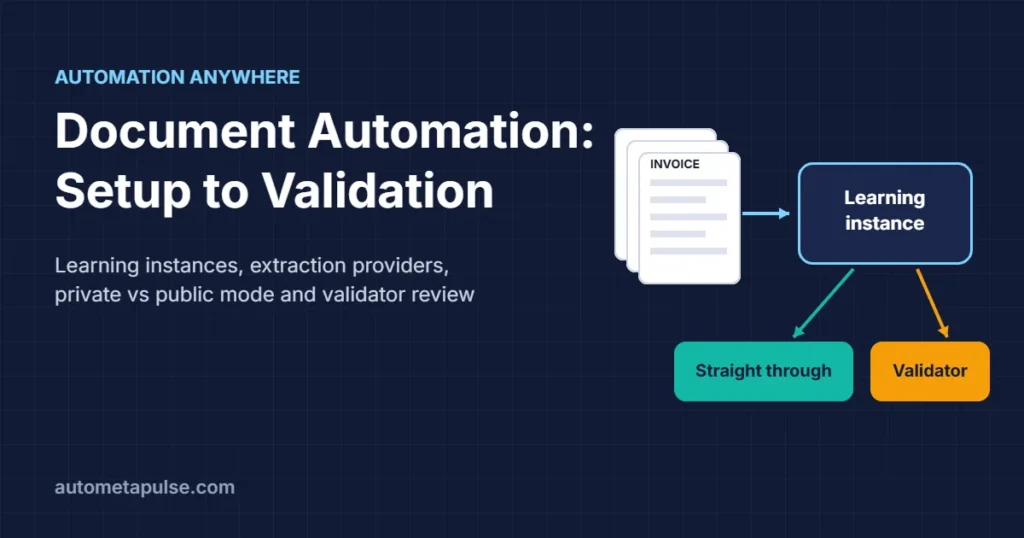
Automation Anywhere Document Automation reads documents such as invoices, purchase orders and bills of lading, extracts the fields you define, and sends anything it is unsure about to a human validator. You set it up once as a learning instance, test it in private mode, then move it to public mode, where bots process documents and Automation Co-Pilot routes validation tasks to your team.
In this guide
- What Document Automation does
- Setup: users, roles and devices
- Create a learning instance
- Choose an extraction provider
- Test in private mode, then go public
- How validation works
- Practical checklist
- Frequently asked questions
Every product detail below comes from the official Automation Anywhere documentation. New to the platform? Our Automation Anywhere best practices guide covers bot design habits that apply here too.
What Automation Anywhere Document Automation does
Document Automation is the intelligent document processing (IDP) capability inside the Automation 360 Control Room. You find it under AI > Document Automation. According to the documentation, a learning instance is “a configuration where users can define the data to extract (form and table fields), how to extract the data… and how to validate the extracted data (data types and rules).”
In plain terms, one learning instance answers three questions:
- What to extract: form fields (values that appear once, such as an invoice number) and table fields (values that repeat, such as line items).
- How to extract: the document type, language, extraction provider, OCR engine and, optionally, generative AI.
- How to check the result: data types, required fields, confidence and validation rules.
When you create a learning instance, the Control Room also generates the automation around it. The documentation says it creates a folder with the same name under Automation > Document Workspace Processes containing “two bots (extraction and download), a process, and a form.” The extraction bot reads the document, the download bot writes results to the output folder, and the Automation Co-Pilot process ties the steps together, including the human validation step.
Supported input formats listed in the Document Automation FAQ are PDF, JPG, JPEG, PNG, TIF and TIFF. The FAQ also confirms that tables spanning multiple pages can be extracted, and that “Document Automation offers over 35 of the most common invoice fields.”
Setup: users, roles and devices
On Control Room Cloud, the documentation states “there are no additional installation tasks”; Document Automation is installed with the Control Room. What you do need to configure is people, permissions and devices.
Roles you will need
The official Document Automation users page defines a set of users, each mapped to system roles. The table below summarises them.
| User | Main roles (from the docs) | What they do |
|---|---|---|
| Learning instance creator | AAE_IQ Bot Services, AAE_Basic, auto-document-processor custom role (Bot Creator licence) | Creates, edits and tests learning instances |
| Document Automation Admin | AAE_Admin, AAE_Pool Admin | Manages users and device pools |
| Co-Pilot Admin | AAE_Robotic Interface Manager, AAE_Robotic Interface Admin | Deploys the process, manages teams, assigns validation tasks to a team |
| Scheduler | AAE_IQ Bot Services, AAE_Basic, auto-document-processor | A service user, “not associated with a real person” |
| Unattended Bot Runner | AAE_IQ Bot Services, AAE_Basic, auto-document-processor | Runs the bots for public-mode learning instances |
| Validator | AAE_IQ Bot Validator, AAE_Robotic Interface User, auto-document-processor (Automation Co-Pilot for Business Users licence) | Reviews and corrects documents processed in public mode |
Setup steps in order
The setup page lists these steps:
- Sign in to the Control Room as an administrator.
- Create a custom role that lets users check bots in and out, manage packages and validate documents (the auto-document-processor role used above).
- Create the users. The Unattended Bot Runner user needs device credentials.
- Connect a device (Manage > Devices) and create a device pool (Manage > Device pools), adding the auto-document-processor role as a consumer. This is what lets a learning instance run in public mode.
- Connect the Control Room to Automation Co-Pilot: open Co-Pilot by adding
/aarito the Control Room URL, then set the Scheduler user under Manage > Process > Global scheduler. - Create a team (Manage > Teams), turn on shared request visibility, add your Validator users and assign the team to the Document Automation process.
Do steps 5 and 6 before you go public: they are what connect validation tasks to your validator team.
Create a learning instance
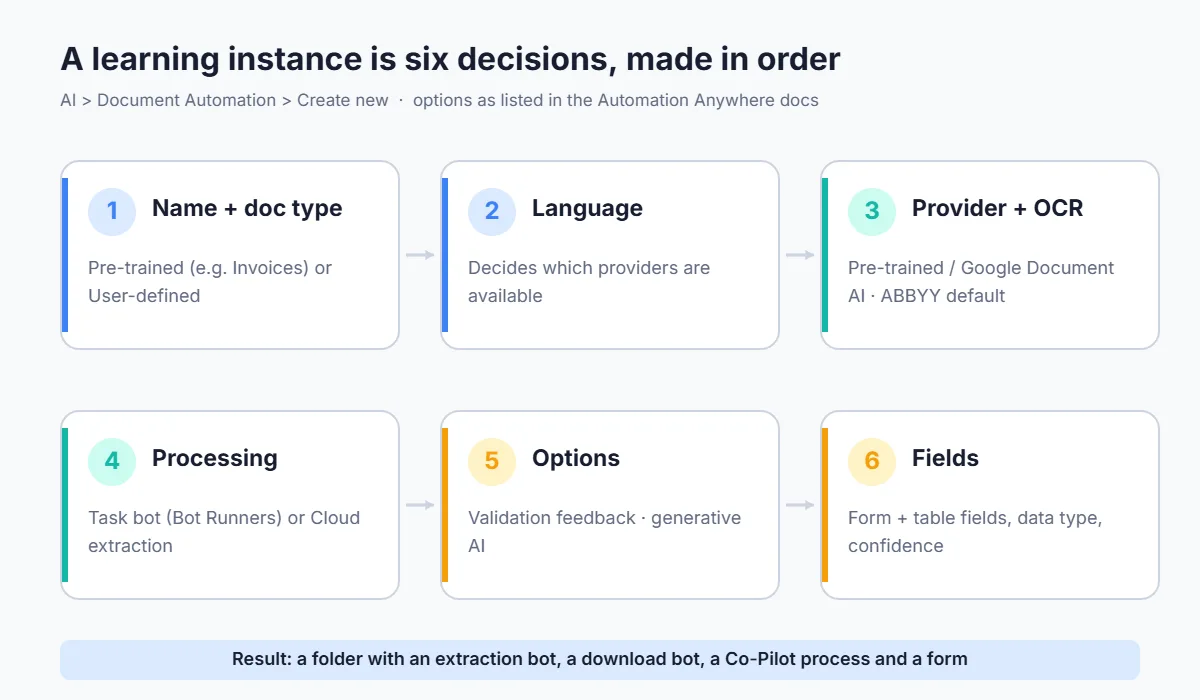
Sign in as the Learning instance creator and go to AI > Document Automation > Create new. The create a learning instance page walks through these choices:
- Name and description. Names must be unique; the docs note that duplicate learning instance names are not allowed.
- Document type. Choose a pre-trained type (for example Invoices) or User-defined, which the docs recommend for documents such as purchase orders and sales orders where you define every field yourself.
- Language. Availability of providers and models depends on the language you pick.
- Provider. For English, “Automation Anywhere (Pre-trained)” is selected automatically.
- OCR provider (optional). ABBYY FineReader Engine is the default. Google Vision and Digital PDF Extractor are alternatives; both need a Cloud Control Room, and Digital PDF Extractor only works on digital PDFs, not scans.
- Process document using. “Task bot” (the default, which runs on Bot Runners) or “Cloud extraction”, which the docs say needs “the Enterprise Platform license along with the Document AI Credits.”
- Improve accuracy using validation (optional). Sends validator corrections back as feedback. It is only available for some document types.
- Generative AI-driven data extraction (optional). See the provider section below.
- Fields. Add form and table fields with a name, label, confidence, data type and date or number format. You can also add custom tables.
Start narrow: one document type, one language, and only the fields a downstream system needs.
Choose an extraction provider
The “Choosing an extraction model” page groups documents into three kinds and recommends an approach for each:
| Document kind | Example | Recommended approach (per the docs) |
|---|---|---|
| Structured | A fixed government form | Standard Forms model: OCR with a template-based model |
| Semi-structured | Invoices, bills of lading, waybills | Pre-trained provider (Automation Anywhere or Google Document AI), tested against your samples |
| Unstructured | Contracts, letters | Unstructured document extraction model, which relies on generative AI |
According to the same page and the FAQ, Automation Anywhere’s pre-trained models cover invoices, arrival notices, bills of lading, packing lists and waybills, while Google Document AI covers invoices, receipts and utility bills. Both support User-defined documents.
The document types support matrix also shows which combinations support validation feedback. For example, Invoices and User-defined documents with the Automation Anywhere provider support it; the Google Document AI combinations listed do not. If learning from validator corrections matters to you, check this matrix before you pick a provider.
Generative AI extraction
The create page lists generative AI providers as Open AI (embedded licence or bring your own key), Anthropic via AWS Bedrock or Google Vertex AI (bring your own key), and Google Gemini. The privacy notice is clear that “when the generative AI capability is selected, the query is sent to a third-party service,” and the architecture and security page states that Automation Anywhere does not use or allow third-party vendors to use customer documents for training.
For some document types, such as Bill of Lading and Unstructured documents, the support matrix notes the generative AI option “is enabled by default and cannot be disabled.” If your data policy does not allow documents to leave for a third-party model, check this before choosing those types. Provider lists change between releases, so confirm them for your version.
Test in private mode, then go public
A new learning instance is saved in your private repository. The overview page describes two phases:
- Private mode (training): create, edit and test with sample documents.
- Public mode (production): the learning instance is deployed for operational use, and documents that need review go to a validation queue.
A practical way to test is to collect 20 to 30 real samples per supplier layout (an illustrative number; pick what represents your actual mix), run them in private mode, and compare the output with what a person would have keyed in. Adjust field labels, data types and required flags until the misses are rare and predictable. Only then move to public mode.
In public mode, the Automation Co-Pilot process runs: start form → extraction bot → document validator task (if needed) → download bot. The process page lists the request statuses you will see:
| Status | Meaning | Output location |
|---|---|---|
| Success / STP | Extracted without needing validation | Success folder |
| VALIDATION_SUCCESS | Validator reviewed and submitted | Success folder |
| VALIDATION_INVALID | Validator marked it invalid | Invalid folder |
| VALIDATION_REPROCESSING | Validator chose Reprocess | Sent back to the extraction bot |
| FAILED | Processing failed | Failed folder |
How validation works
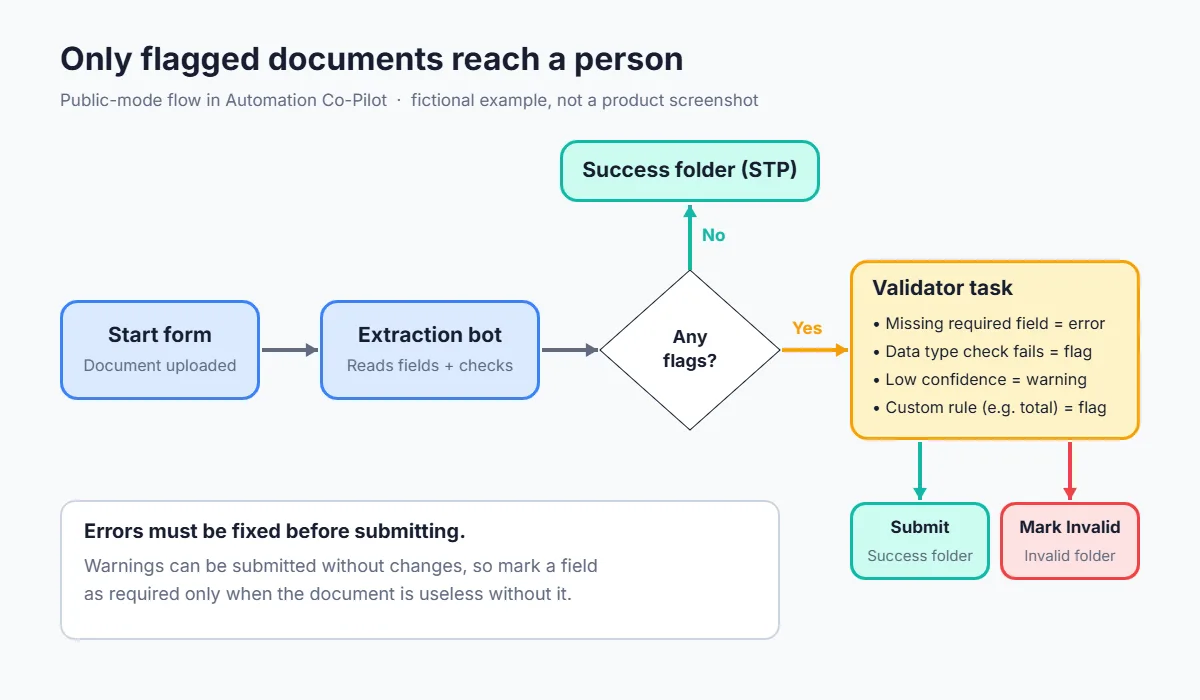
The validating documents overview lists what Document Automation flags by default:
- Missing required fields
- Built-in data type checks (for example, number and date)
- Fields with low confidence
- Custom validation rules you define
It then separates errors from warnings. “Documents with errors must be corrected before submission,” while “documents with warnings can be submitted without changes.” The docs give the example that a low-confidence field triggers a warning, whereas a missing required field generates an error. This is the single most useful design lever you have: mark a field as required only if the document cannot be used without it.
What the validator does
A Validator signs in, goes to AI > Document Automation and clicks Validate documents, which shows how many documents are waiting. This opens the Automation Co-Pilot Task Manager with the document on the left and the fields on the right. From there the validator can:
- Use Show fields that need validation to jump to flagged fields.
- Correct a value by clicking the highlighted area on the document or drawing a new box.
- Skip to the next document, Mark as Invalid for a document that cannot be processed, or Submit to save the output to the Success folder.
A Co-Pilot admin can also open validation tasks from Tasks, where they can be assigned, filtered and searched. The FAQ adds that validation rules can be based on “patterns, formulas, lists, and statements,” which is how you catch problems like a total that does not equal subtotal plus tax.
For a wider view of where human review adds value, and where it just adds delay, see our guide to human-in-the-loop AI automation.
Practical checklist
Use this list before you switch a learning instance to public mode:
- Roles assigned to every user in the table above, including a real Validator team.
- Device pool created with the auto-document-processor role as consumer.
- Co-Pilot connected and the Scheduler user set in the global scheduler.
- Only essential fields marked as required.
- Validation rules added for totals, dates and ID formats.
- Sample set tested in private mode, with known failure patterns written down.
- A plan for the Invalid and Failed folders: who checks them, and how often.
- Generative AI choice reviewed against your data policy.
If your invoices start in a Microsoft 365 mailbox instead, our walkthrough of invoice extraction with Power Automate shows the same pattern on a different platform.
Frequently asked questions
What is a learning instance in Automation Anywhere?
It is the configuration that defines which fields to extract, how to extract them (document type, provider, OCR, rules) and how to validate the result. Creating one also generates an extraction bot, a download bot, an Automation Co-Pilot process and a form.
Which file types does Document Automation accept?
The Document Automation FAQ lists PDF, JPG, JPEG, PNG, TIF and TIFF.
Do I need a separate install for Document Automation?
Not on Control Room Cloud. The setup page says there are no additional installation tasks; you configure users, roles, devices and the Automation Co-Pilot connection.
What is the difference between private and public mode?
Private mode is for training and testing with sample documents. Public mode is production, where bots process documents and items needing review go to the validation queue.
What happens when a field has low confidence?
It is flagged with a warning. The validator can correct it or submit the document as it is. A missing required field, by contrast, is an error that must be fixed before submission.
Can validator corrections improve extraction?
Yes, for supported combinations. The “Improve accuracy using validation” option sends feedback, but the support matrix shows it is available only for some document types and providers.
Is my data used to train generative AI models?
The architecture and security page states that Automation Anywhere does not use or allow third-party vendors to use customer documents or data for training. Documents are still sent to the third-party model when generative AI extraction is turned on.
Conclusion: start narrow, validate smart
Automation Anywhere Document Automation works best when you treat setup as a design exercise rather than a checkbox: get roles, devices and the Co-Pilot connection right, define a small set of fields, test in private mode, and decide deliberately which problems are errors and which are only warnings. That keeps validators focused on the documents that need a person.
If you want a second pair of eyes on your document workflow, explore our Automation Anywhere resources or get in touch.