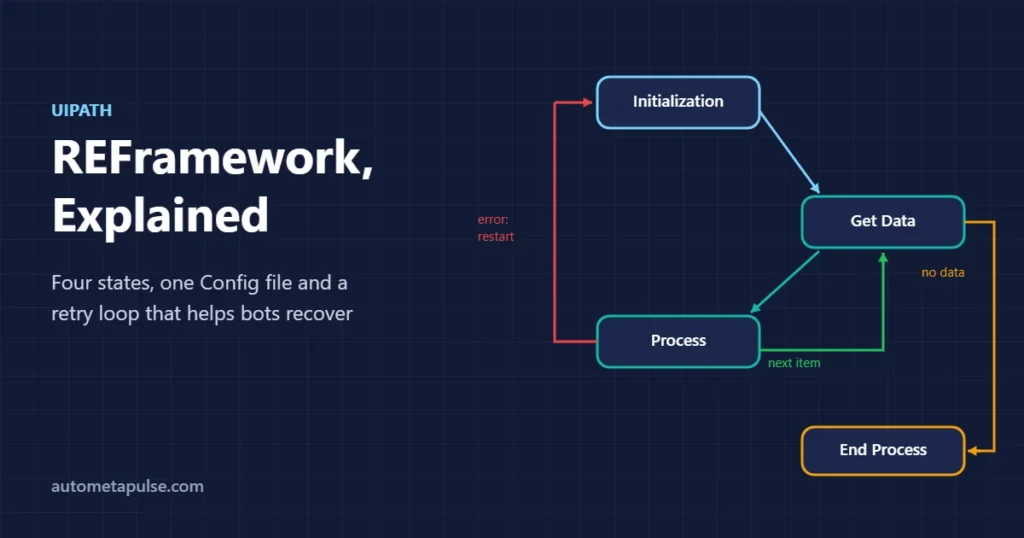
The UiPath REFramework (Robotic Enterprise Framework) is a Studio project template, built on a state machine, that gives a transactional bot a ready-made structure for configuration, logging and exception handling. It processes work one transaction at a time, skips items that break a business rule, and restarts the applications and retries when something technical fails. You add your process logic; the framework handles the recovery.
In this guide
- What the UiPath REFramework is
- The four states and how transitions work
- The Config file: settings, constants and assets
- Business rule exceptions vs system exceptions
- Retries with Orchestrator queues
- How to build a process on the REFramework
- Frequently asked questions
What the UiPath REFramework is
UiPath’s Studio documentation describes the Robotic Enterprise Framework as a project template based on state machines, with UiPath.Excel.Activities, UiPath.System.Activities and UiPath.UIAutomation.Activities as its default dependencies. The template ships with documentation and examples in the project folder.
The original REFramework manual, published in UiPath’s ReFrameWork repository on GitHub, states its purpose plainly: at a minimum, give every process a way to store and change configuration, a robust exception handling scheme, and logging for every exception and relevant transaction detail.
The key idea is the transaction. Instead of one long script that handles all your work in a single pass, the bot repeats the same unit of work — one invoice, one customer record, one queue item — until there is nothing left. Each transaction succeeds, fails on a business rule, or fails on a system error, and the framework records which.
When the REFramework is a good fit
| Good fit | Probably overkill |
|---|---|
| Many similar items processed one by one (queue items, spreadsheet rows, emails) | A single short task with no repeating unit of work |
| Unattended bots that must recover without a person watching | A quick attended helper the user runs and watches |
| Processes that log in to one or more applications that can freeze or time out | Pure file or data manipulation with no applications to restart |
| Work that needs an audit trail of each item’s outcome | Throwaway prototypes |
The manual also covers “linear” processes: you can set a single transaction for transaction number 1 and still benefit from the configuration and error handling. But the framework earns its keep when there is a list of items to work through.
The four states and how transitions work
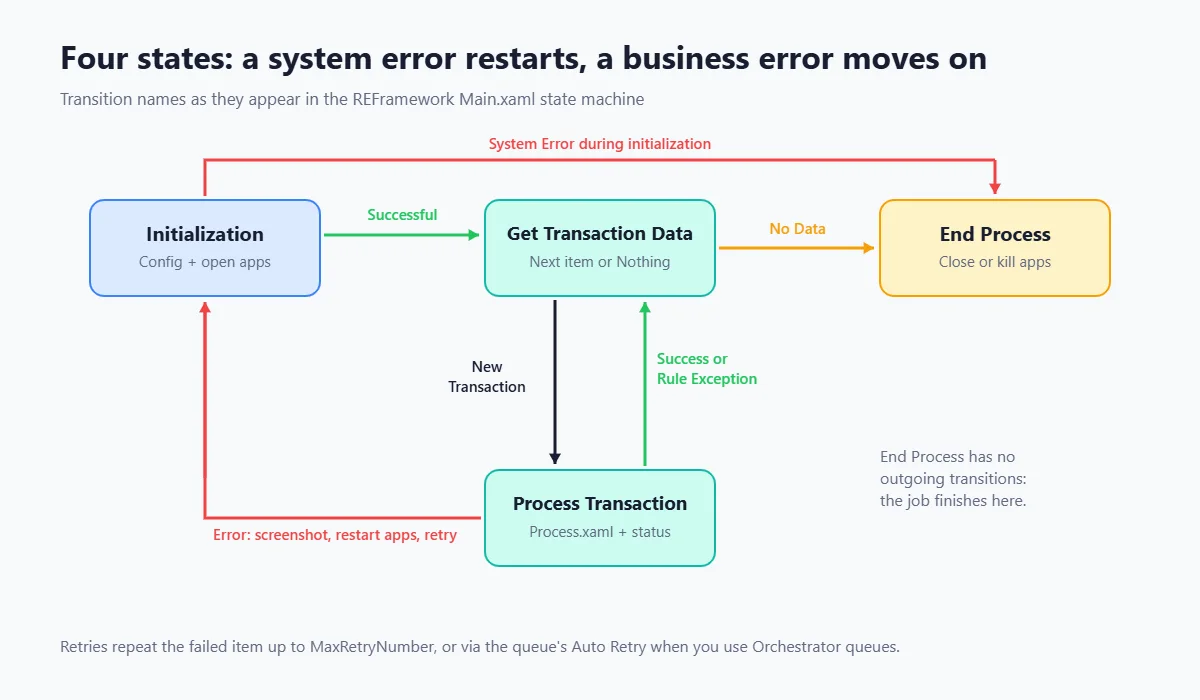
The main workflow, Main.xaml, is a state machine with four states. The names below are taken from the template itself.
| State | What happens | Leaves via |
|---|---|---|
| Initialization | On the first run, reads the Config file and Orchestrator assets and kills leftover processes. Then opens and logs in to the applications. | Successful initialization → Get Transaction Data; System Error → End Process |
| Get Transaction Data | Fetches the next item — from an Orchestrator queue, a spreadsheet, a database or an API — and checks whether a stop was requested from Orchestrator. | New Transaction → Process Transaction; No Data → End Process |
| Process Transaction | Runs Process.xaml (your business logic) inside a Try Catch, then records the result in SetTransactionStatus.xaml. | Success or Rule Exception → Get Transaction Data; Error → Initialization |
| End Process | Closes all applications, and kills their processes if they do not close cleanly. | No transitions — the job ends |
Two transitions are worth reading twice:
- A system error in Initialization ends the job. If the bot cannot even log in, the manual says it lacks the information it needs to begin, so it goes straight to End Process.
- A system error during processing goes back to Initialization, not to the next item. The framework closes the applications (killing them if needed), takes a screenshot, reopens everything and starts again from the transaction that failed — up to the configured retry limit.
That loop is what lets an unattended bot survive a frozen application window at 3 a.m. without a person logging in to restart it.
The workflows in the Framework folder
| Workflow | Job |
|---|---|
InitAllSettings.xaml | Builds the Config dictionary from the Settings and Constants sheets, then from Orchestrator assets |
InitAllApplications.xaml | Opens and logs in to the applications the process needs |
GetTransactionData.xaml | Returns the next transaction item, or Nothing when the work is finished |
Process.xaml | Your process logic for one transaction (in the project root) |
SetTransactionStatus.xaml | Sets the outcome (success, business exception, application exception), logs it, and moves the counters on |
TakeScreenshot.xaml | Saves a .png screenshot when a system error happens |
CloseAllApplications.xaml | Soft-closes the applications |
KillAllProcesses.xaml | Force-closes processes that did not close |
GetAppCredentials.xaml | Gets credentials from an Orchestrator asset or the local Windows Credential Manager |
You mostly edit four of them: InitAllApplications, GetTransactionData (if you do not use a queue), Process and CloseAllApplications/KillAllProcesses. The rest is framework plumbing you rarely need to touch.
The Config file: settings, constants and assets
Every REFramework project has a Data\Config.xlsx file. InitAllSettings.xaml reads it into a dictionary called Config, so any workflow can use a value such as Config("OrchestratorQueueName").ToString instead of a hard-coded string.
The file has three sheets:
| Sheet | Holds | Examples from the template |
|---|---|---|
| Settings | Process-specific values a business user might change | OrchestratorQueueName, logF_BusinessProcessName |
| Constants | Technical values for the developer | MaxRetryNumber, ExScreenshotsFolderPath, the static log messages |
| Assets | Names of Orchestrator assets to load | Empty by default; the header notes that assets always overwrite other config |
A few practical rules:
- Never put passwords in the Config file. Store them as Orchestrator credential assets and read them with
GetAppCredentials.xaml. - Use assets for values that differ between environments, such as a test and a production URL. Because assets overwrite the file, you can deploy the same package everywhere.
- Keep the description column filled in. The next developer — or you, in six months — will thank you.
The exact list of settings has grown over the years, so open the Config file in your version of the template and read the description of each entry before changing it.
Business rule exceptions vs system exceptions
This distinction is the heart of the framework. UiPath’s Orchestrator documentation defines both:
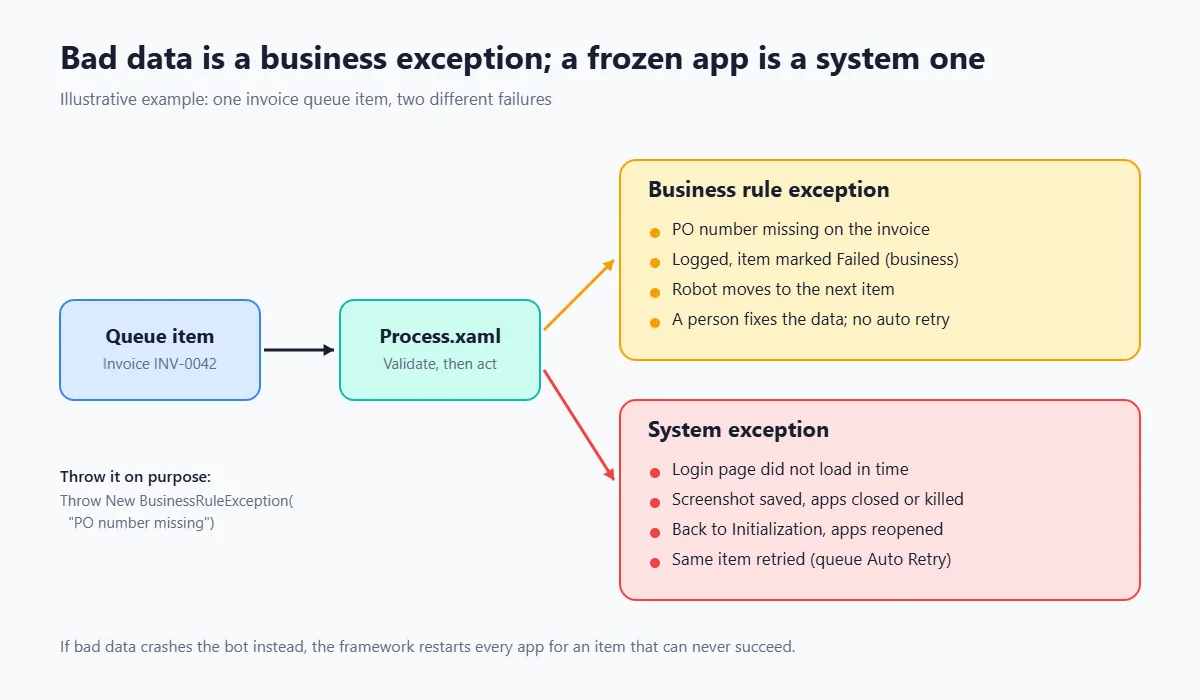
- A business exception is an error rooted in data that is incomplete or missing. Retrying will not help — a person has to fix the data.
- An application exception (the REFramework calls it a system exception) is a technical issue, such as an application that is not responding. Retrying often solves it.
In practice:
| Business rule exception | System exception | |
|---|---|---|
| Example (illustrative) | Invoice has no purchase order number | Login page did not load within the timeout |
| How it is raised | You throw it on purpose: Throw New BusinessRuleException("PO number missing") | Any unexpected error caught by the framework |
| What the framework does | Logs it, marks the item, moves to the next transaction | Takes a screenshot, closes and reopens the apps, retries the same item |
| Queue item status | Failed (business exception) | Failed (application exception), possibly retried |
| Who fixes it | A business user | The bot itself, or a developer if it keeps failing |
The most common REFramework mistake is not throwing business rule exceptions at all. If your Process.xaml simply crashes when a field is missing, the framework treats it as a system error: it restarts every application and retries an item that can never succeed. Validate the data early in Process.xaml and throw a BusinessRuleException with a clear message the business user can act on.
Retries with Orchestrator queues
The REFramework can retry in two places, and you should use only one of them.
- Robot retry — the
MaxRetryNumberconstant. When it is greater than 0,SetTransactionStatus.xamlincreases the retry counter instead of the transaction number, so the framework works on the same item again after reinitialising. - Queue retry — the Auto Retry option on the Orchestrator queue. According to UiPath’s queue documentation, when an item fails with an application exception and auto retry is enabled, the item is retried. Orchestrator does not retry business exceptions by default.
The template’s own description of MaxRetryNumber says it must be 0 if working with Orchestrator queues — otherwise you retry twice, once in the robot and once in the queue. With a queue, let Orchestrator own the retries; it also records each attempt, which makes the audit trail clearer. Use MaxRetryNumber when your data comes from somewhere else, such as a spreadsheet.
It also helps to know the queue item statuses. UiPath’s queue item status reference lists New, In Progress, Failed, Successful, Abandoned, Retried and Deleted. An item becomes Abandoned when it stays In Progress for about 24 hours without being processed — usually a sign that a job was killed mid-transaction.
More UiPath tutorials, including queue design, are in our UiPath section.
How to build a process on the REFramework
Here is a practical order of work for a queue-based process.
- Define one transaction. Write down what a single item is (for example, one invoice) and what “done” means for it. If you cannot describe one transaction in a sentence, split the process.
- Create the project from the Robotic Enterprise Framework template in Studio and give it a clear name.
- Fill in the Config file. Set
OrchestratorQueueName,logF_BusinessProcessNameand any URLs or file paths. Add credential assets to the Assets sheet. - Write
InitAllApplications.xaml. Open and log in to each application. Keep it idempotent: it runs again after every system error. - Write
CloseAllApplications.xamlandKillAllProcesses.xamlso they leave a clean desktop. A bot that cannot restart cleanly cannot recover. - Write
Process.xaml. Start with validation that throws business rule exceptions, then the actual steps. Split long logic into smaller invoked workflows. - Leave
GetTransactionData.xamlas is if you use a queue. If your data comes from a file, load it once on transaction number 1 and return one row per call, thenNothingat the end, as the manual describes. - Test the unhappy paths. Feed one item with bad data (expect a business exception) and close an application mid-run (expect a screenshot, a restart and a retry). The template includes a
Testsfolder with a test workflow template you can build on. - Set the queue’s Auto Retry and keep
MaxRetryNumberat 0.
The same thinking applies on other platforms. Our Automation Anywhere best practices guide covers the equivalent try–catch–finally structure, and human-in-the-loop AI automation explains where business exceptions should land with a person.
Frequently asked questions
What does REFramework stand for?
Robotic Enterprise Framework. It is a UiPath Studio project template built on a state machine for transactional processes.
Do I need Orchestrator to use the REFramework?
No. The template works with any data source, such as a spreadsheet or a database, and can read credentials from the Windows Credential Manager. It is designed to work best with Orchestrator queues, assets and logs, though.
What are the four REFramework states?
Initialization, Get Transaction Data, Process Transaction and End Process. A system error during processing sends the bot back to Initialization to restart the applications.
What is the difference between a business rule exception and a system exception?
A business rule exception means the data is wrong or incomplete, so retrying will not help. A system exception is a technical problem, such as a frozen application, that a retry may fix.
Should MaxRetryNumber be 0 when I use queues?
Yes. The template’s Config file says it must be 0 when working with Orchestrator queues. Let the queue’s Auto Retry setting handle retries instead.
Where should I store passwords?
In Orchestrator credential assets, or the Windows Credential Manager for local runs. Never store them in Config.xlsx.
Can I use the REFramework for a process with only one transaction?
Yes. The manual describes setting a single transaction for transaction number 1. You still get the configuration, logging and error handling.
Why does my bot keep restarting applications for the same item?
Usually because a data problem is being treated as a system error. Validate the item in Process.xaml and throw a BusinessRuleException so the framework moves on.
Conclusion: let the framework handle recovery
The UiPath REFramework gives every transactional bot the same backbone: a Config file instead of hard-coded values, a state machine that restarts applications after technical failures, and a clear split between data problems and system problems. Define your transaction, throw business rule exceptions on purpose, keep the close and kill workflows reliable, and let Orchestrator queues own the retries.
If you want a second pair of eyes on an existing UiPath bot or help designing a new one, our automation services cover process design, build and handover.
Discuss your automation workflow →