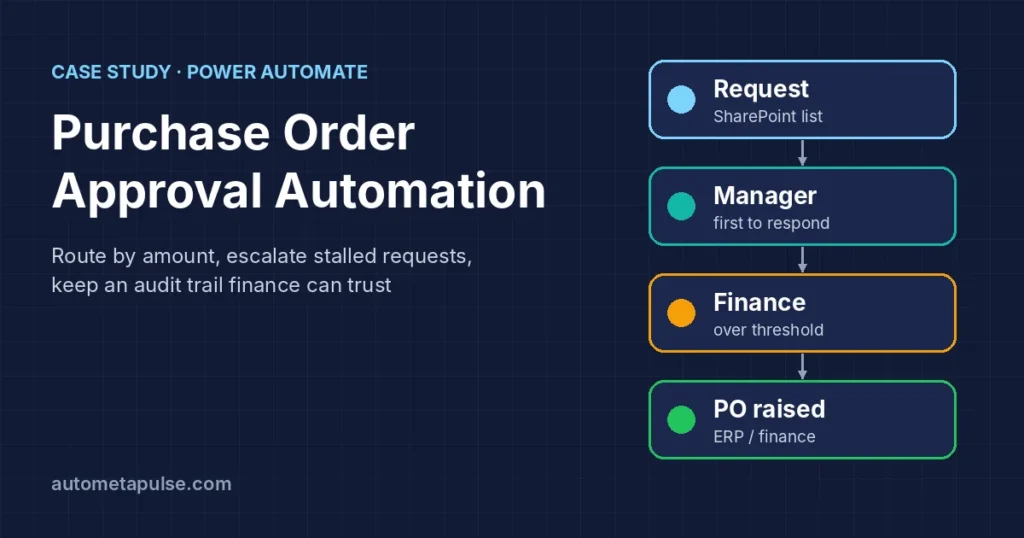
Purchase order approval automation replaces email chains and spreadsheet trackers with one flow that routes each request to the right approvers, waits for their decision, and records the outcome. In this illustrative case study, a hypothetical distributor uses Power Automate and a SharePoint list to route purchase requests by amount, escalate stalled approvals, and keep an audit trail that finance can trust.
Prefer to watch first? Watch the 45-second video with its full transcript.
In this guide
- The business scenario and the problem
- The approval matrix: who approves what
- The flow design, step by step
- Escalations, timeouts and the 30-day limit
- Audit trail and reporting
- What to measure after go-live
- Lessons and common mistakes
- Frequently asked questions
Note: This is an illustrative case study based on a hypothetical business scenario. The company, people and numbers are fictional and are used only to explain the design. Product behaviour is taken from Microsoft’s official documentation, linked throughout.
The business scenario and the problem
Our fictional company, a regional distributor of packaging supplies with about 250 employees, buys from several dozen suppliers. Before automation, a purchase request worked like this:
- A requester filled in a spreadsheet template and emailed it to their manager.
- The manager replied “approved” (or forgot to reply), then forwarded it to finance if the amount was large.
- Finance re-typed the details into the ERP system to raise the purchase order.
- Nobody could answer “where is my request?” without searching inboxes.
The problems were familiar ones. Requests stalled when an approver was travelling. Approval evidence lived in personal mailboxes, which made audits slow. Large purchases sometimes skipped the second approval because the forwarding step depended on memory. And requesters chased approvers by chat, which added noise without adding control.
The goal for the project was simple to state: every purchase request follows the same documented route, every decision is recorded, and nothing waits silently.
The approval matrix: who approves what
Before building anything, the team agreed an approval matrix with finance. This is the most important design artifact in the whole project, because the flow only automates the policy you give it.
| Request amount (illustrative) | Approval route | Approval type in Power Automate |
|---|---|---|
| Up to 1,000 | Requester’s line manager | Approve/Reject – First to respond (manager or named deputy) |
| 1,001 to 10,000 | Line manager, then a finance approver | Two sequential approvals |
| Over 10,000 | Line manager, then finance, then the operations director | Three sequential approvals |
| Any amount, new supplier | Add a procurement check before the manager | Extra approval step at the start |
The thresholds above are illustrative. Your own limits should come from your delegation-of-authority policy, not from a blog post.
Two choices in the matrix are worth explaining:
- First to respond for the manager step. Each manager names a deputy. Whichever of the two responds first completes that step, so leave and travel no longer block the request. Microsoft describes this type as “Approval or rejection by any approver completes the request” (Get started with approvals).
- Sequential, not parallel, for finance. Finance only wants to see requests the manager has already approved, so the stages run one after another. Parallel approvals suit cases where each approver decides independently, such as IT, HR and the manager reviewing a new starter at the same time.
If you are new to the approval types, our Power Automate approval workflow guide covers sequential, parallel and escalation patterns in more depth.
The flow design, step by step
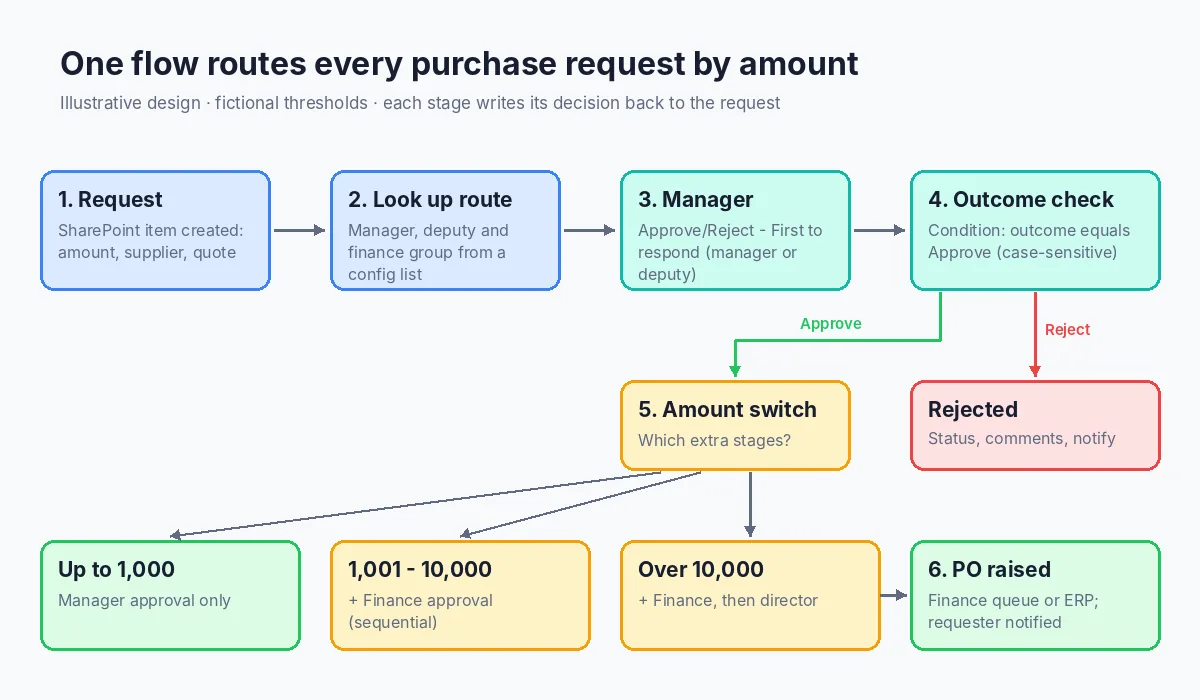
The hypothetical team built one cloud flow, triggered from a SharePoint list called Purchase Requests. Microsoft’s own sequential-approval tutorial uses a SharePoint list trigger as well, and notes that SharePoint is only an example and isn’t required for approval flows (Manage sequential approvals). A Microsoft Form, a Power Apps app or a Dataverse table would work as the front door too.
1. Capture the request
The list has columns for requester, department, supplier, description, amount, currency, cost centre, a “new supplier” yes/no field, a quote attachment, and a Status column that the flow updates. Making these required fields in the list stops incomplete requests before the flow ever runs.
2. Trigger and look up the route
The trigger is When an item is created (SharePoint). The flow then:
- Gets the requester’s manager from Office 365 Users.
- Reads the deputy and the finance approver group from a small configuration list, so routing changes do not need a flow edit.
- Sets Status to “Pending manager approval”.
3. Manager approval
The flow calls Start and wait for an approval with the type Approve/Reject – First to respond, assigned to the manager and their deputy. The approval title includes the request ID, supplier and amount so approvers can decide from the notification itself.
Approvers can respond from an Outlook email, a Microsoft Teams adaptive card, or the Power Automate action center, according to Microsoft’s documentation. That flexibility matters for adoption: managers approve wherever they already are.
4. Check the outcome
A Condition checks whether the outcome equals Approve. Microsoft’s connector reference notes that the responses “Approve” and “Reject” are case-sensitive (Approvals connector reference), so the comparison must match exactly.
- Rejected: set Status to “Rejected”, copy the approver’s comments to the item, email the requester, and stop.
- Approved: continue to the amount check.
5. Finance and director stages
A Switch (or nested conditions) on the amount band decides whether to add the finance stage and the director stage. Each stage is another Start and wait for an approval followed by its own outcome check, so a rejection at any stage ends the run with a clear reason.
6. Raise the purchase order
Once all required approvals are in, the flow sets Status to “Approved – PO pending” and hands the data to the ERP. How this works depends on the ERP: some have a connector or API, while older desktop systems may need a desktop flow. If you are weighing the two, see Power Automate Desktop vs cloud flows. In our scenario, finance chose to keep a human step here at first: the flow posts the approved request to a finance queue, and an accounts assistant raises the PO and pastes the PO number back into the list.
7. Close the loop
When the PO number is filled in, a second small flow notifies the requester and sets Status to “PO raised”. The requester never has to ask where things stand.
Escalations, timeouts and the 30-day limit
Silent waiting was the original pain point, so escalation was designed in from day one.
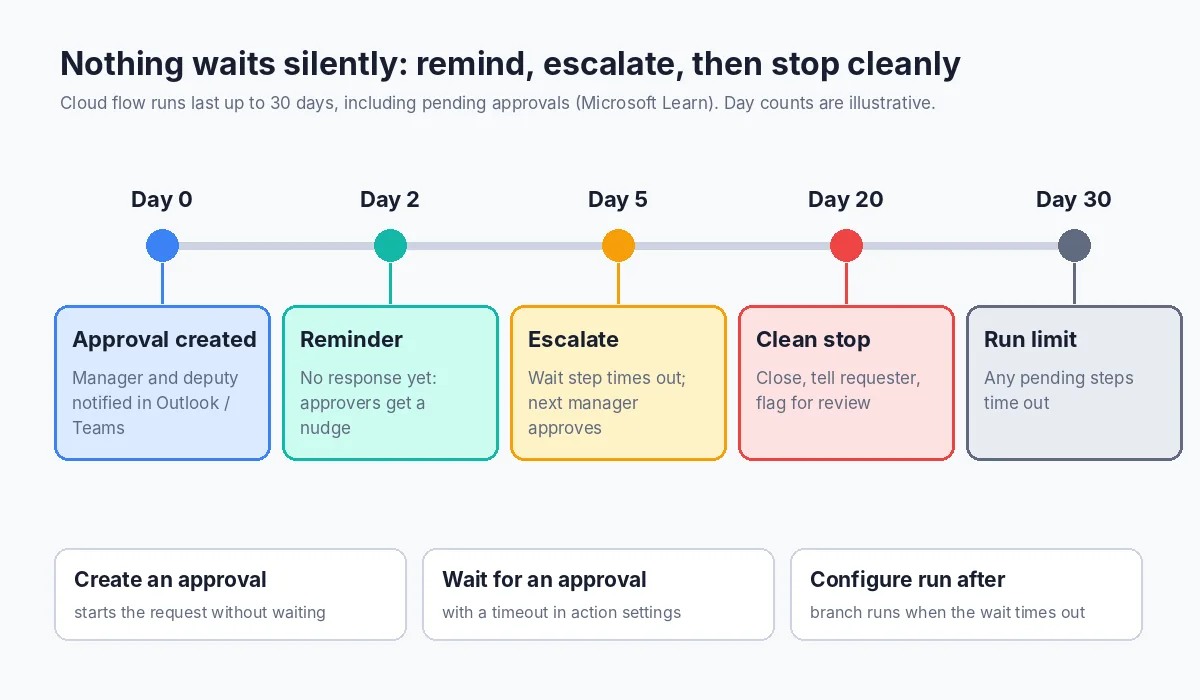
Microsoft’s limits page is clear on one constraint: a cloud flow run can last up to 30 days, and that duration “includes flows with pending steps like approvals. After 30 days, any pending steps time out” (Power Automate limits and configuration). An unanswered approval cannot simply sit forever.
The illustrative design handles this in three layers:
| Layer | What happens | How it is built |
|---|---|---|
| Reminder | After 2 working days with no response, the approvers get a reminder | Use Create an approval, then a reminder loop alongside Wait for an approval |
| Escalation | After 5 days, the request goes to the approver’s own manager | Timeout set on the wait step; a branch configured to run only when that step times out |
| Clean stop | Anything still open is closed well before day 30, the requester is told, and the item is flagged for review | Final timeout plus a status update, so nothing expires unnoticed |
The day counts above are illustrative; pick values that fit your policy and leave a safety margin before the 30-day limit.
The connector offers Create an approval (which starts an approval but does not wait) and Wait for an approval as separate actions, as well as the combined Start and wait for an approval. Splitting them is what makes reminders possible, because the flow can do other work between creating the request and waiting for it. To make a branch handle a timeout, set the step’s timeout in its action settings and use Configure run after on the next action. Our Power Automate error handling guide explains run-after settings and scopes.
Audit trail and reporting
Microsoft’s documentation states that approval flows are saved in Dataverse. In the default environment the database is created automatically; in other environments it is provisioned the first time an approval flow runs, and the person running that first flow needs an administrator role in the environment. Plan for that before go-live rather than discovering it in the pilot.
For audit purposes the hypothetical team also wrote a simple history to the request itself:
- Approver name, outcome, comments and response time for every stage, appended to a multi-line Approval history column.
- The original quote attachment kept on the list item.
- A link to the flow run in a hidden column for support staff.
Two details from Microsoft’s connector documentation are worth knowing. Approval timestamps are always shown in UTC, so convert them before showing them to people in other time zones. And the connector has throttling limits per flow (for example, 50 approval-create requests per 60 seconds), which is rarely an issue for purchase requests but matters if you bulk-load old requests.
A Power BI report or even a filtered SharePoint view then answers the questions finance cares about: what is pending, who it is waiting on, and how long each stage takes.
What to measure after go-live
This case study is fictional, so we will not claim results. Instead, here is what a real team should measure, with a baseline taken before the change:
- Cycle time from request to PO raised, by amount band.
- Time per approval stage, to see which stage waits longest.
- Escalation rate: the share of approvals that hit a reminder or escalation.
- Rejection rate and reasons, which often reveal unclear purchasing rules.
- Policy exceptions: requests that reached the PO stage without every required approval (the target should be zero).
- Requester follow-ups: how often people still chase approvals by chat or email.
Compare the same months year on year where purchasing is seasonal. A two-week pilot with one department gives cleaner data than a big-bang launch.
Lessons and common mistakes
These are general lessons from approval projects of this kind, applied to the scenario:
- Agree the matrix first. Most delays in approval projects come from policy questions, not from Power Automate.
- Keep routing data outside the flow. A configuration list for deputies, thresholds and finance groups means business owners can update routes without editing the flow.
- Use service accounts for connections. Flows that run under a personal account break when that person leaves. Our employee onboarding case study covers the same point.
- Write the decision back to the record. Email notifications are not an audit trail on their own.
- Test rejections and timeouts, not just approvals. Most production issues sit on the paths nobody clicked during testing.
- Mind attachments. The connector documentation notes that approvals with multiple attachments of the same name cannot be created, so give attachments unique names.
Frequently asked questions
Do I need a premium licence for purchase order approvals in Power Automate?
The Approvals connector is a standard connector. Microsoft says any licence that grants access to Power Automate and standard connectors is enough to create approval flows. Premium may still be needed for other parts of the flow, such as some ERP connectors or desktop flows, so check each connector you use.
Can approvers respond from Microsoft Teams?
Yes. According to Microsoft’s documentation, approvers can respond from an Outlook email, a Microsoft Teams adaptive card, or the Power Automate action center.
What happens if nobody responds to an approval?
The flow run can last up to 30 days, including pending approvals, and after that the pending steps time out. Design reminders, escalations and a clean stop well before that limit.
Should I use sequential or parallel approvals for purchase orders?
Use sequential approvals when later approvers should only see requests that earlier approvers accepted, as with manager-then-finance. Use parallel approvals when several people decide independently at the same time.
Does the request have to start in SharePoint?
No. Microsoft’s tutorials use a SharePoint list as an example and state that SharePoint isn’t required. Microsoft Forms, Power Apps or Dataverse tables are common alternatives.
Where is the approval history stored?
Approval flows are saved in Dataverse. Many teams also write each decision and comment back to the request record so the history sits next to the purchase request.
Can Power Automate create the purchase order in our ERP?
Often, yes, through a connector, an API, or a desktop flow for systems without one. Some teams keep a human step at first and automate PO creation once the approval routing is stable.
Conclusion: start with the policy, then automate the route
Purchase order approval automation works best when the approval matrix is clear, routing data lives outside the flow, and every path, including rejections and timeouts, is designed and tested. Power Automate’s approval actions, Outlook and Teams responses, and Dataverse-backed history cover the core mechanics; the rest is careful process design. Explore more guides in our Power Automate section and other case studies.