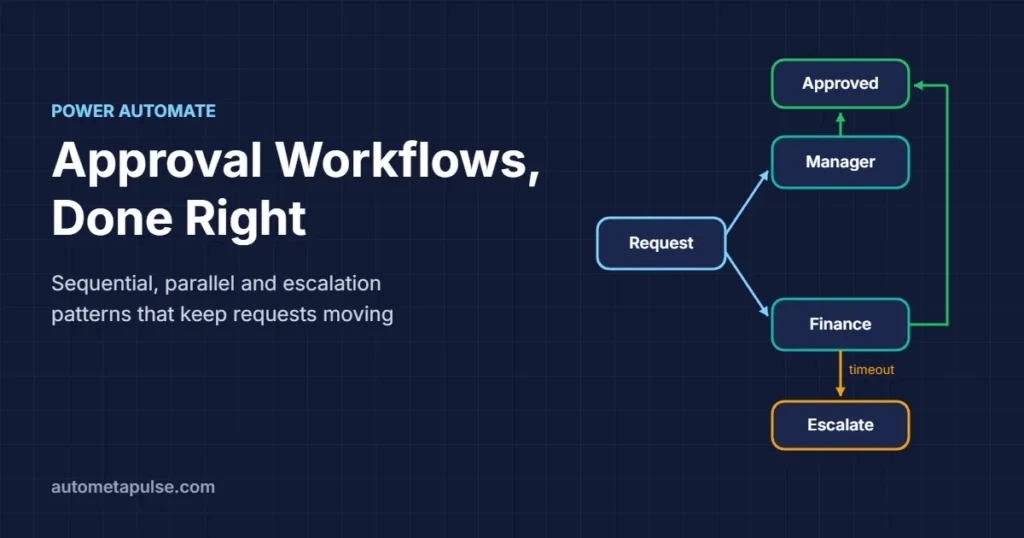
A Power Automate approval workflow sends a request to one or more people, waits for their decision, and then runs different steps depending on the answer. You build it with the standard Approvals connector, choose an approval type that matches your rule (everyone must approve, or the first response wins), and arrange approvers in sequence or in parallel. Adding a timeout and an escalation path keeps requests from sitting unanswered.
In this guide
- How approvals work in Power Automate
- The four approval types and when to use each
- Sequential approval workflows
- Parallel approval workflows
- Escalation, reminders and timeouts
- Design checklist before you go live
- Frequently asked questions
How approvals work in Power Automate
Approvals in Power Automate are handled by the Approvals connector, which Microsoft lists as a standard connector. According to Microsoft’s getting started guide, any licence that gives access to Power Automate and standard connectors is enough to build approval flows.
A typical approval flow has three parts:
- A trigger — a new SharePoint list item, a submitted Microsoft Form, an incoming email, or a button.
- An approval action — sends the request and records the outcome.
- A condition — checks the outcome and runs the “approved” or “rejected” branch.
Approvers can respond from an Outlook email, a Microsoft Teams adaptive card, the Power Automate approvals center, or the Power Automate mobile app. Every request and response is stored in Microsoft Dataverse, so you get an audit trail without building one yourself.
One setup detail catches people out: approvals need a Dataverse database. In the default environment it is created for you automatically. In other environments it is provisioned the first time an approval flow runs, and Microsoft notes that the person who runs that first approval flow needs an administrator role in the environment.
The three approval actions
| Action | What it does | When to use it |
|---|---|---|
| Start and wait for an approval | Sends the request and pauses the flow until it completes | Most flows — simplest option |
| Create an approval | Sends the request but does not wait | When you need to do something else first, such as send a custom notification |
| Wait for an approval | Waits for an approval you already created, using its Approval ID | Paired with “Create an approval” |
If you are new to approvals, start with Start and wait for an approval. Split it into “Create” and “Wait” only when you need steps in between, for example posting the approval link to a Teams channel or writing the request ID back to a SharePoint list.
The four approval types and when to use each
The approval type decides when the request counts as complete. Microsoft’s documentation describes four types in the “Start and wait for an approval” action:
| Approval type | Completes when | Good fit |
|---|---|---|
| Approve/Reject – Everyone must approve | All approvers respond, or any one rejects | Policy sign-off, contracts, anything needing unanimous agreement |
| Approve/Reject – First to respond | Any one approver responds | A shared queue: “any manager on the team can approve” |
| Custom responses – Wait for all responses | Every approver picks one of your custom options | Surveys, multi-option decisions (“Approve / Reject / Needs changes”) |
| Custom responses – Wait for one response | Any one approver picks a custom option | Triage, where one person routes the request |
A few practical notes:
- With Everyone must approve, a single rejection ends the request. That is usually what you want for compliance-style checks.
- First to respond is useful for team inboxes, but it means you do not know in advance who will decide. Record the responder’s name in your system of record.
- Custom responses let you add a third path such as “Send back for changes”. Microsoft notes that custom-response approvals sent to many users with “everyone must approve” can fail because of data-size limits on the results field, so keep the approver list short.
The Details field supports Markdown, so you can format the request with headings, bullet points and links back to the source document. A clear request is the single biggest factor in how quickly people respond.
Sequential approval workflows
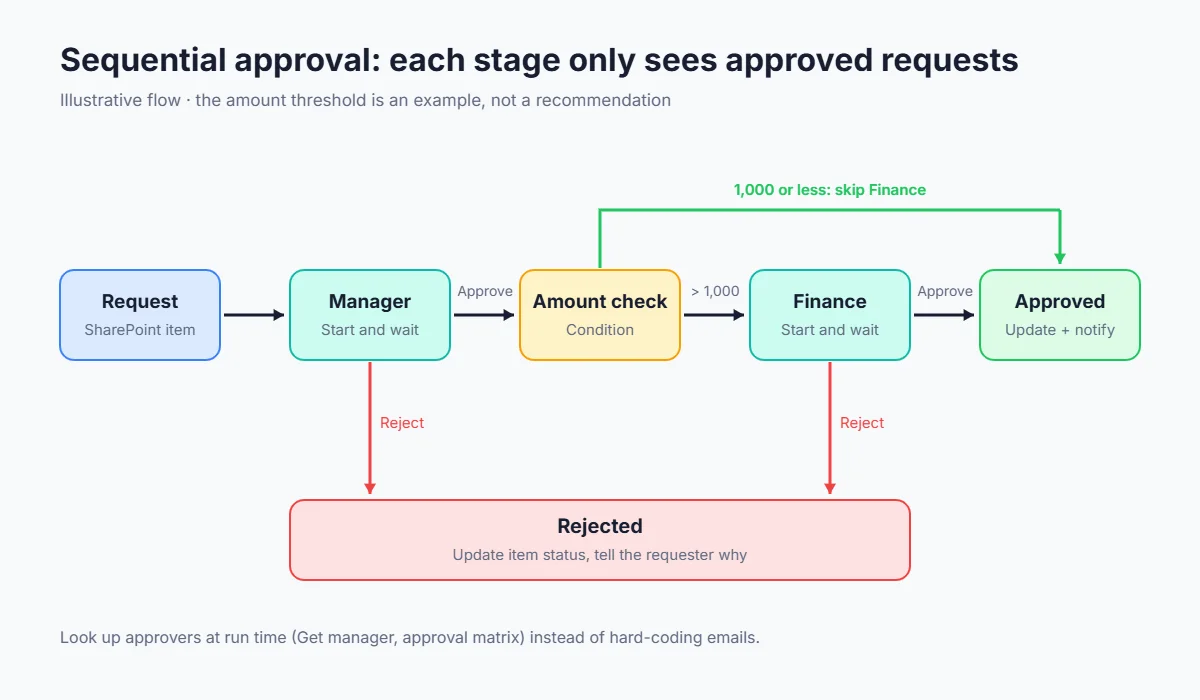
A sequential approval asks one approver at a time, in a fixed order. Microsoft’s own sequential approval example describes a policy where invoices over a certain amount need pre-approval before the Finance department signs off.
How to build a sequential approval
- Trigger — for example, “When an item is created” on a SharePoint list of purchase requests.
- Approval 1 — “Start and wait for an approval” assigned to the requester’s manager.
- Condition — if the outcome is “Approve”, continue; otherwise update the item to “Rejected”, notify the requester and stop.
- Approval 2 — a second “Start and wait for an approval” assigned to Finance. Include the first approver’s comments in the Details field so Finance sees the context.
- Condition — on approval, update the item status to “Approved” and notify the requester.
Making the chain dynamic
Hard-coding approver emails works for a demo but breaks as soon as someone changes role. Better options:
- Use the Office 365 Users connector’s “Get manager (V2)” action to find the requester’s manager at run time.
- Keep an approval matrix in a SharePoint list or Dataverse table (for example: department, amount band, approver) and look it up in the flow.
- Add a condition on the amount so small requests skip the second stage. For illustration only: a team might route requests under 1,000 to the manager alone and send larger ones on to Finance.
Sequential flows are easy to understand and audit, but every stage adds waiting time. Use them when the order genuinely matters — when Finance should not spend time on something the manager has already rejected.
Parallel approval workflows
In a parallel approval, several people review the same request at the same time, and each decision is independent. Microsoft’s parallel approval tutorial uses a vacation request that needs approval from the direct manager, the Sales team and HR.
There are two ways to run approvals in parallel, and they behave differently:
| Approach | How it works | Result you get |
|---|---|---|
| One action, several approvers | List several people in “Assigned to” with type “Everyone must approve” | One combined outcome |
| Parallel branches | Use “Add a parallel branch” with a separate approval action in each branch | One outcome per branch, so each team can have its own follow-up steps |
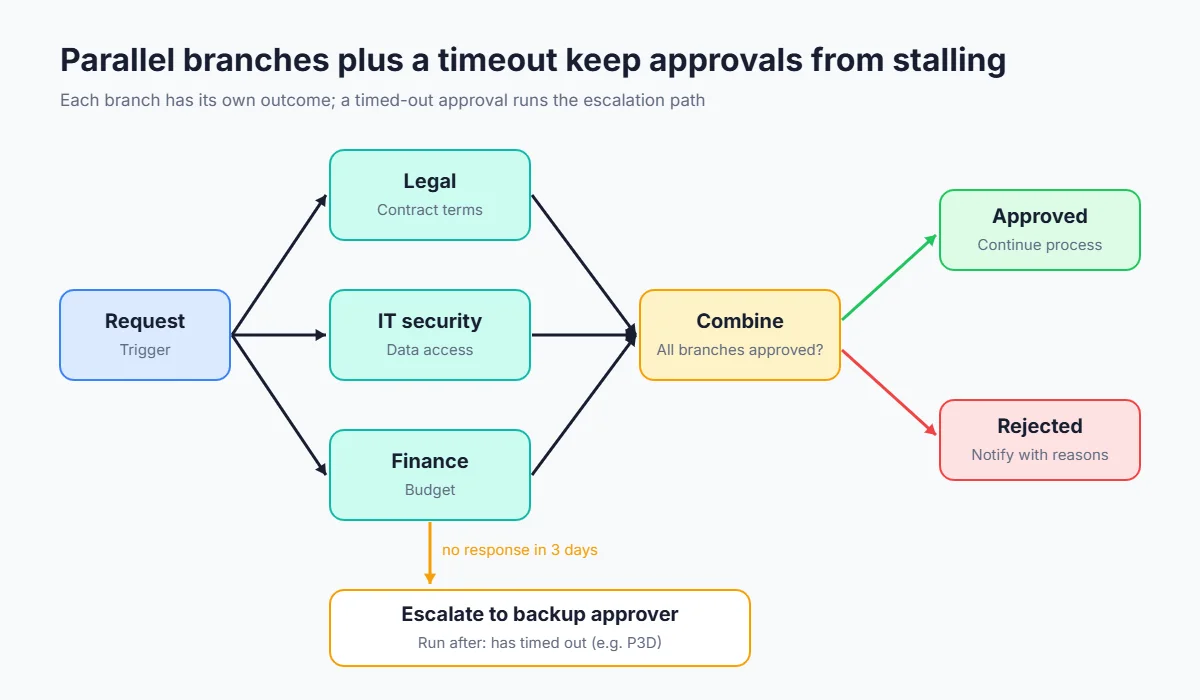
Use one action with several approvers when everyone is approving the same thing for the same reason. Use parallel branches when each reviewer checks something different — for example, Legal reviews contract terms while IT reviews security — and you want separate comments, separate outcomes and possibly different follow-up actions.
After parallel branches, add a step that runs once all branches finish and combines the outcomes. A simple rule is “approved only if every branch approved”; record each branch’s response so the requester knows who rejected and why.
Escalation, reminders and timeouts
Unanswered approvals are the most common reason approval flows stall. Power Automate cloud flow runs have a maximum duration of 30 days, and Microsoft’s limits documentation states that this includes pending steps like approvals: after 30 days, any pending steps time out. Plan for that from day one.
A simple escalation pattern
- Open the approval action’s Settings and set a Timeout using an ISO 8601 duration — for example
P3Dfor three days. - Add the escalation step after the approval and use Configure run after so it runs only when the approval has timed out. Microsoft’s training module on configure run after explains the four states: is successful, has failed, is skipped and has timed out.
- In the escalation branch, send a new approval to the approver’s manager (or a backup approver), and notify the original approver and the requester.
- Keep the normal success path set to run only when the approval is successful, so the two paths never both run.
Reminders without escalation
If you only want to nudge people, use Create an approval instead of “Start and wait”. Then run a loop with a delay that checks whether the request is still pending and sends a reminder, before finally calling Wait for an approval. This takes more steps, so use it only when reminders matter more than simplicity.
Reassignment
Approvers can reassign a request to someone else from the approvals center, which is useful during holidays. Requesters cannot reassign their own request, but they can cancel it. Communicate this to approvers so that “I was on leave” does not become the reason a request expires.
Design checklist before you go live
Use this checklist when you review an approval flow with the process owner:
- Approver source: approvers come from a lookup (manager, matrix list) rather than hard-coded addresses.
- Approval type: the type matches the business rule (unanimous, any one, or custom responses).
- Clear details: the request includes the amount, the reason, a link to the source item, and what happens next.
- Rejection path: the requester is told why, and the source record is updated.
- Timeout and escalation: every approval has a timeout shorter than 30 days and a defined escalation path.
- Audit: the outcome, responder, comments and date are written back to the source record.
- Ownership: the flow is owned by a service account or a team, not one person who might leave. Microsoft notes that the flow creator is always shown in approval details, which is another reason to use a shared account.
- Testing: you have tested approve, reject, timeout and reassignment, each with a test user.
- Throttling: high-volume flows stay within the connector’s documented limits (Microsoft lists 50 approval create requests per flow per 60 seconds).
If your approval process starts from a document, such as an invoice, our guide to invoice extraction automation with Power Automate shows how to capture the data before it reaches the approval step. For deciding where people should review automated decisions at all, see human-in-the-loop AI automation. More Power Automate tutorials are in our Power Automate section.
Frequently asked questions
Is the Approvals connector premium?
No. Microsoft lists Approvals as a standard connector, so any licence that includes Power Automate with standard connectors can create approval flows. Other connectors in the same flow, such as Dataverse actions or HTTP requests, may still need a premium licence.
Can approvers respond from Microsoft Teams?
Yes. Microsoft’s documentation says approvers can respond from an Outlook email, a Microsoft Teams adaptive card, or the Power Automate approvals center, depending on their licence. They can also use the Power Automate mobile app.
What is the difference between “Everyone must approve” and “First to respond”?
“Everyone must approve” waits for all approvers and ends early if anyone rejects. “First to respond” completes as soon as any one approver makes a decision.
How long can an approval wait?
A cloud flow run can last up to 30 days, including pending approvals. After that, pending steps time out. Use a timeout and escalation path so requests never reach that limit unnoticed.
How do I build a multi-level approval?
Chain several “Start and wait for an approval” actions with a condition after each one. Look up each level’s approver at run time so the flow keeps working when people change roles.
Can I format the approval request?
Yes. The Details field supports Markdown, so you can add headings, lists and links to make requests quicker to review.
Where are approval records stored?
Approvals are stored in Microsoft Dataverse. In the default environment the database is created automatically; in other environments it is provisioned when the first approval flow runs.
Can someone approve on behalf of a colleague?
An approver can reassign a request from the approvals center. The requester cannot reassign it but can cancel it.
Conclusion: start simple, then add structure
A reliable Power Automate approval workflow comes down to a few decisions: the right approval type, a sequential or parallel layout that matches the business rule, approvers looked up at run time, and a timeout with escalation so nothing waits forever. Start with a single “Start and wait for an approval” step, test every outcome, and add stages only when the process needs them.
If you would like help mapping your approval process or reviewing an existing flow, our automation services cover design, build and handover.
Discuss your automation workflow →